
What you'll do
Add a client and fill in the settings that streamline scheduling, documentation and billing: their supervisor, primary address, caregivers and diagnosis.
Before you start
- Have the information the first page of the new client form asks for. Everything on it is required.
- Know who provides the client's insurance, and who will attend sessions.
Video walkthrough
Step by step
Add the client
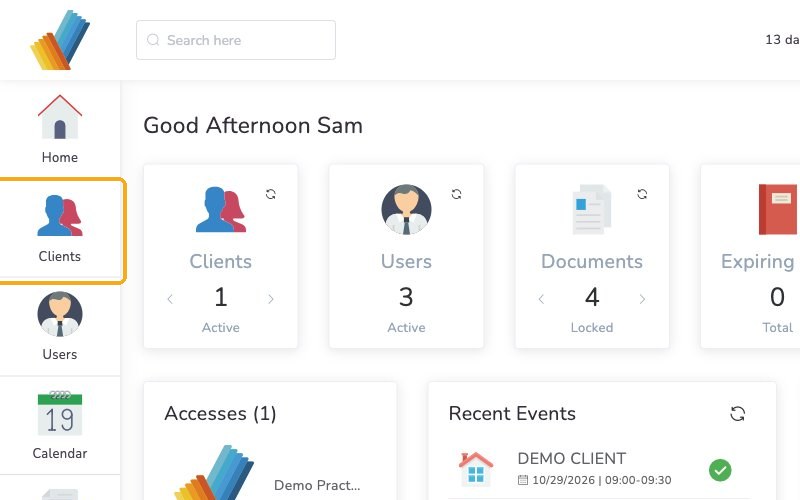
From your Home page, click Clients in the left menu.
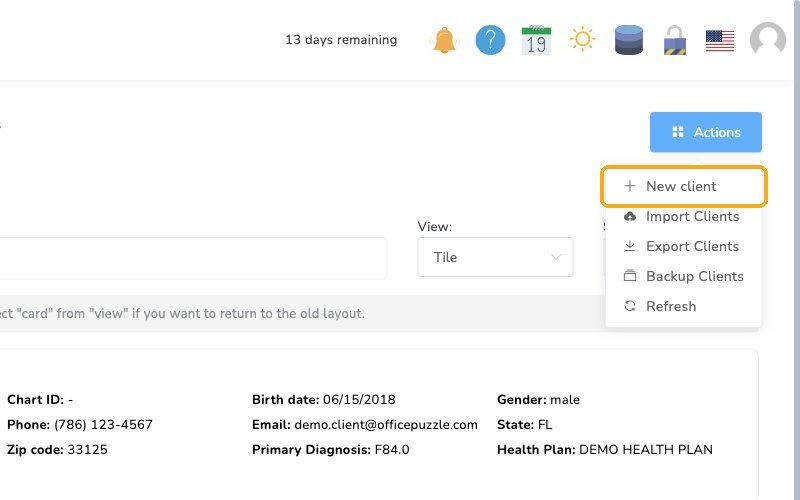
In the upper right, click Actions, then select New client.
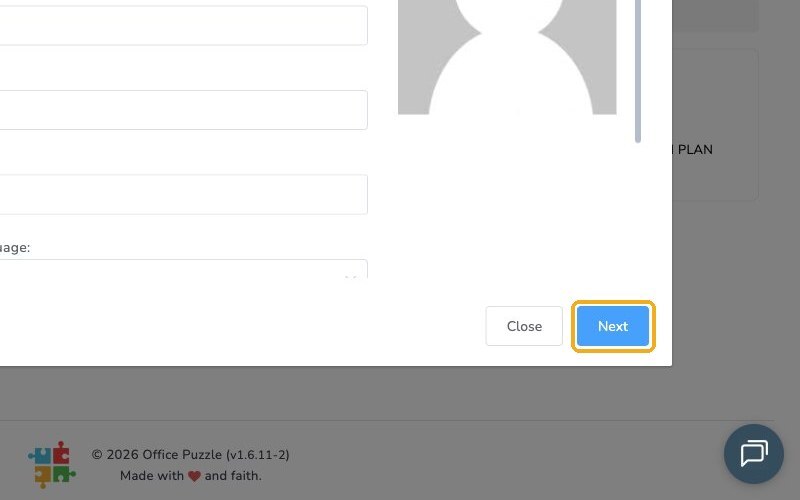
Everything on the first page is required. Click Next to create the client, or use the wizard to add more information now.
Important client settings
To edit a client, click their icon in the client list, then select Manage.

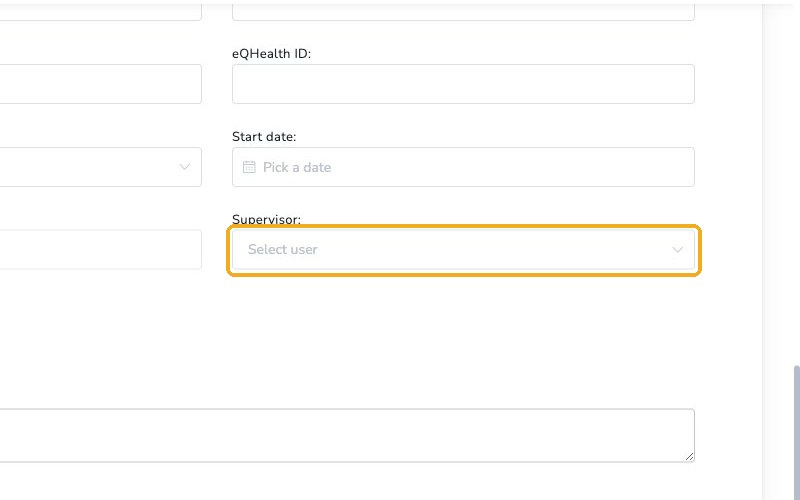
On the Demographics tab, choose the Supervisor: the person who oversees this client, including supervision.
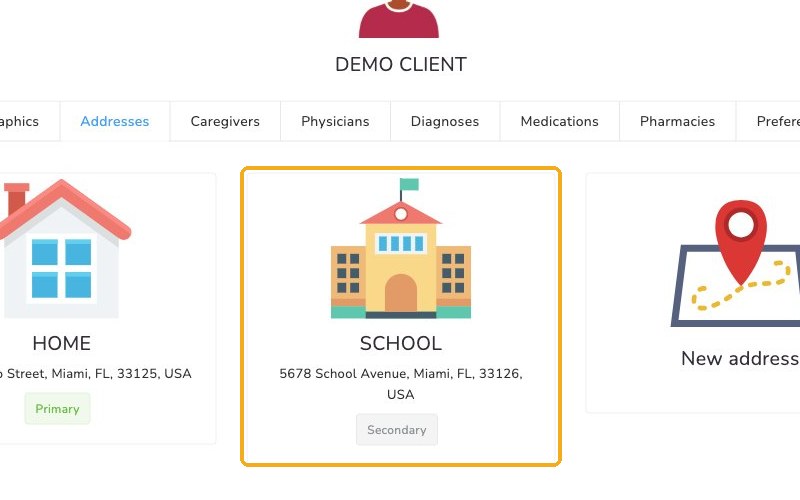
On the Addresses tab, add the address of the caregiver who provides the insurance and make it the primary address. It's used for insurance.
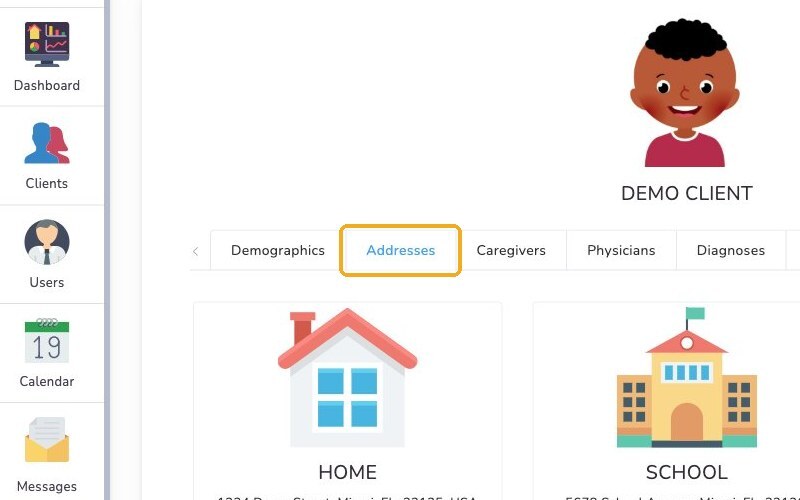
Add the place of service as well, if it's different from the address used for insurance. You don't need to add the agency address here, just the ones personal to the client.
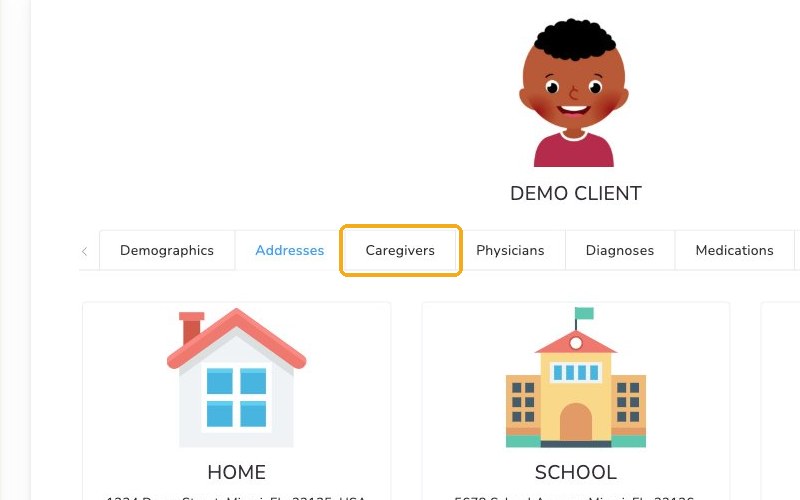
On the Caregivers tab, click Add to add the caregiver who will attend sessions and the caregiver responsible for insurance.
The insurance caregiver is the primary caregiver
Note the Primary toggle. The caregiver who provides insurance is treated as the primary caregiver, so claims are calculated correctly.
Select the Diagnoses tab and click New diagnosis to add the client's diagnosis. It makes documentation much easier.

Check it worked
- The client appears in your Clients list.
- Under Manage, the client has a Supervisor, a primary address, their caregivers and a diagnosis.
Watch out for
- Wrong primary caregiver. Claims are calculated from the primary caregiver, so it must be the caregiver who provides insurance.
- Primary address. Use the insurance caregiver's address as the primary address. It's used for insurance.