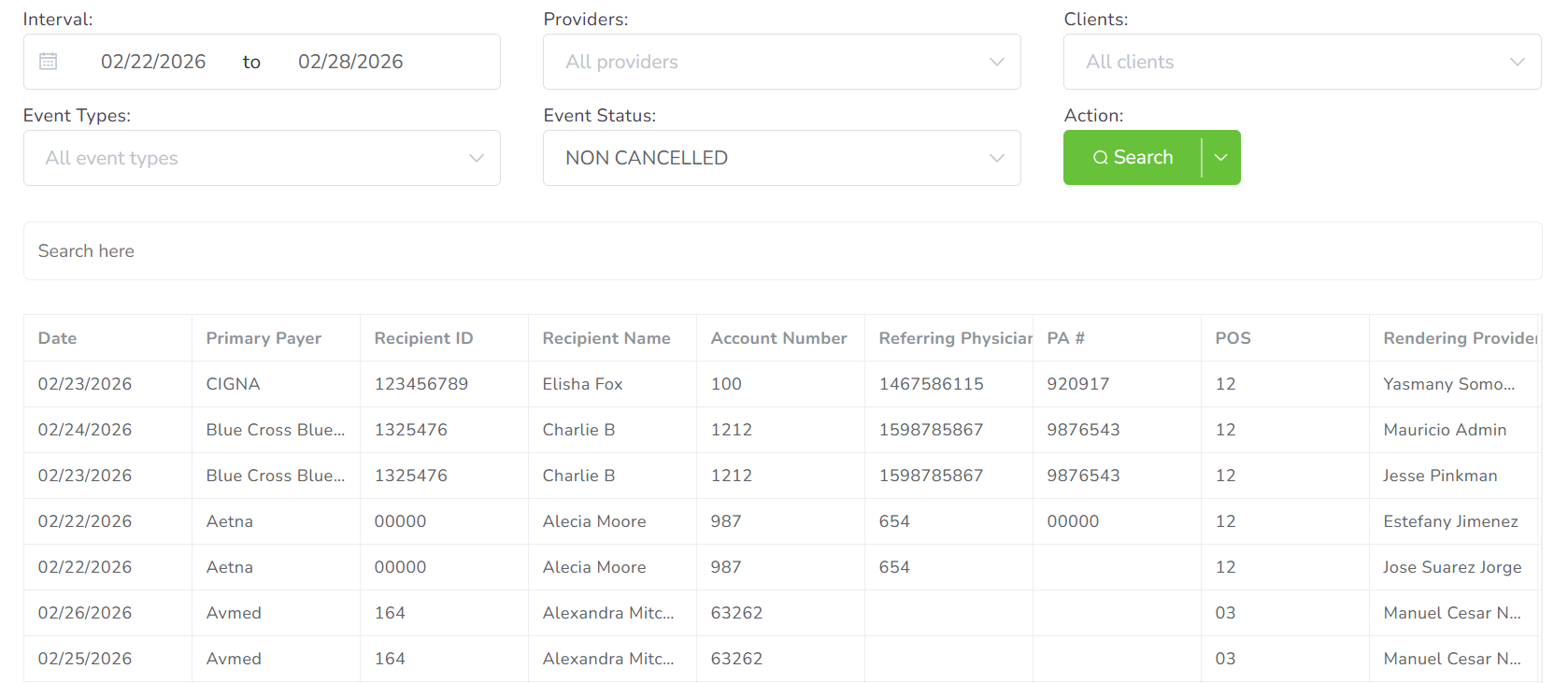
In this section, you will be able to find and visualize in table form all the events that belong to every client and user in the agency. Right next to the Date, you will see an alert icon that will point you to the status of this event.
Filters

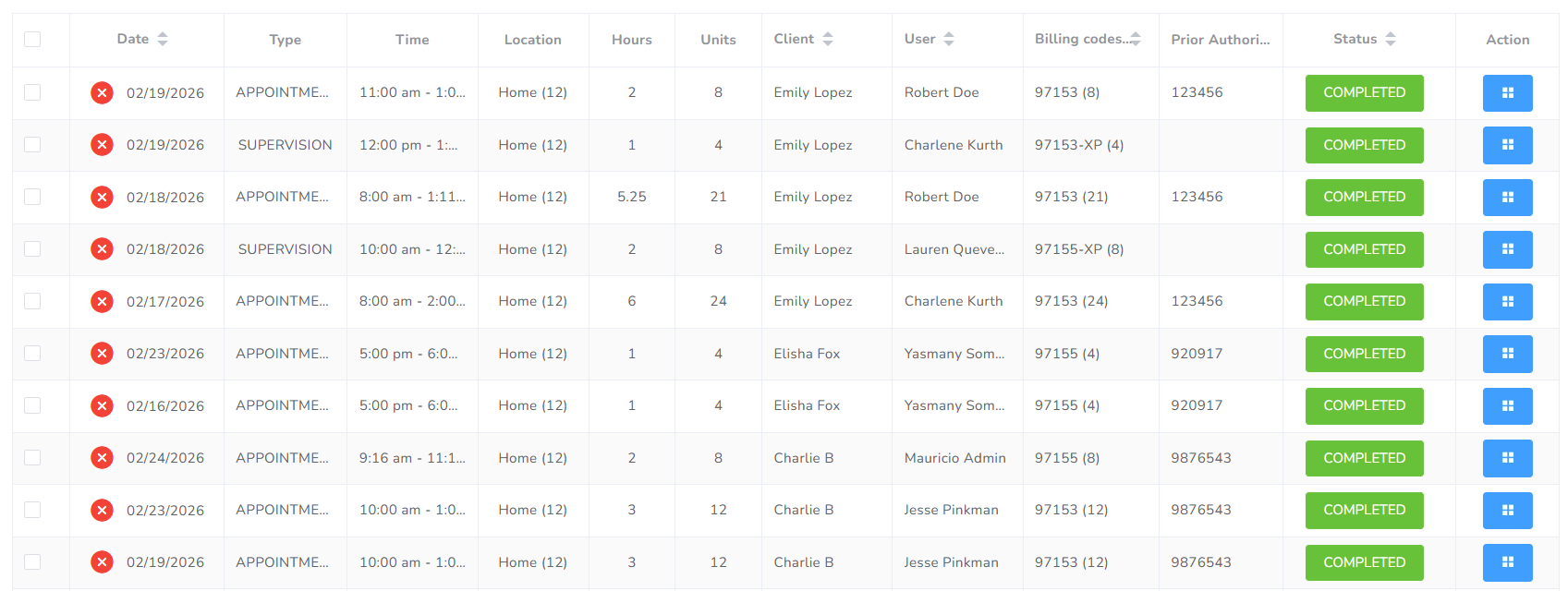
In the different boxes, you can search by applying the following filters:
- Range of dates: You can select the start and end day you wish to filter for.
- Provider: You can select the providers you wish to filter for.
- Client: You can select the clients you wish to filter for.
- Type: You can select the event types you wish to filter for.
- Billing code: You can select the billing codes you wish to filter for.
- Cancelation: You can filter by cancelation or not status. It will be non-cancelled by default.
Alerts
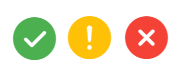
Next to each event, you will have an icon representing the alerts associated with it. The possible options are:
- Success (green checkmark) represents the event fulfilling all applicable policies.
- Warning (yellow exclamation) represents there might be an issue but is not fully required.
- Error (red x mark), representing the event is throwing an error.
If you hover over the icon, you will get all applicable messages:
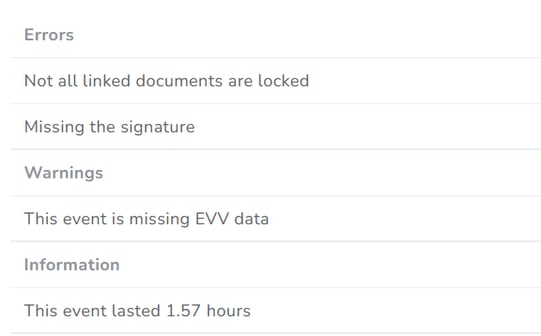
This is just an example; depending on your agency, there will be a difference in the alerts you might receive here.
Actions
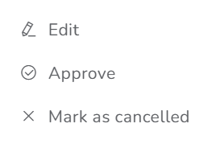
You can access the event and edit it by clicking the blue icon "Actions" button in the last column of each row. There you can approve the event or cancel/uncancel if required.
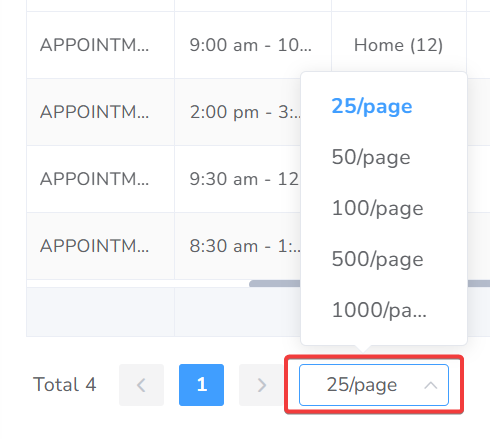
At the bottom of the page, you will be able to change how many events are shown per page by clicking on the 25/page box.
Reports (New)
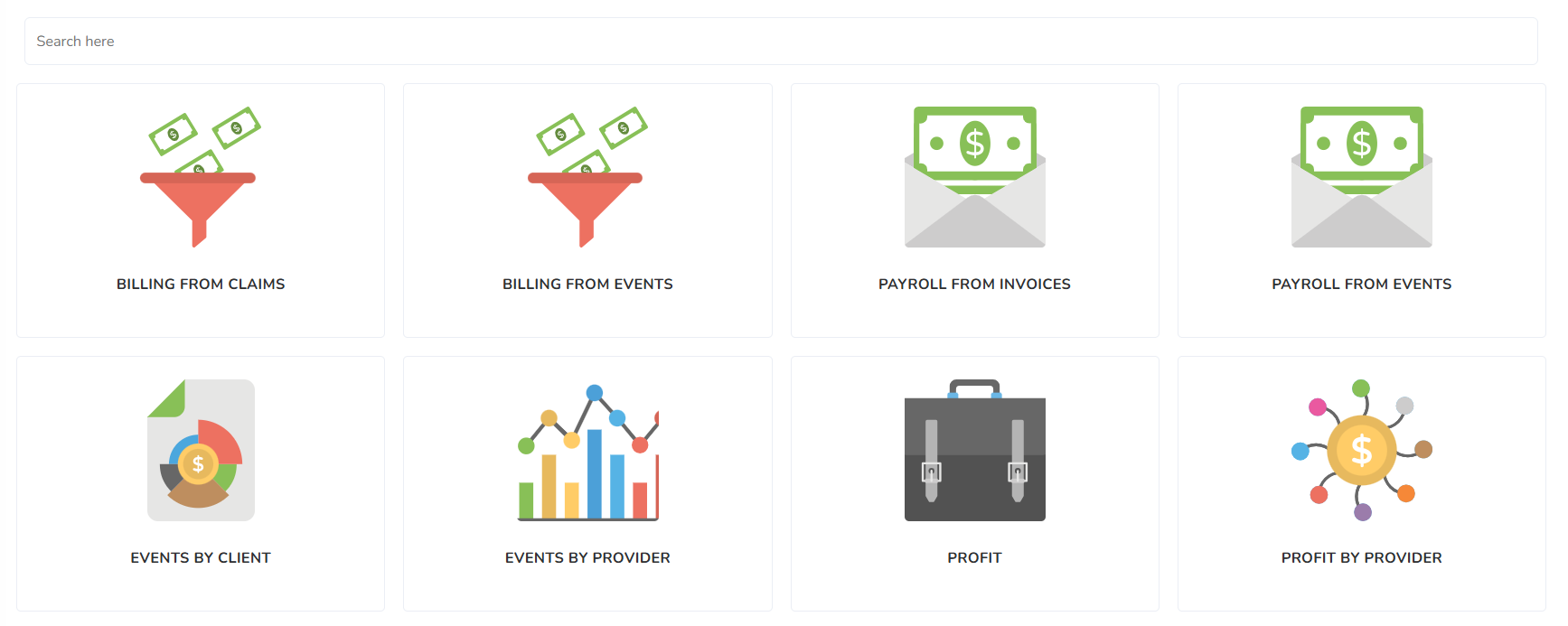
In this section, you will be able to find, visualize and export in a table from several reports from the agency: billing, payroll, users, clients, etc.