
What you'll do
Collect data for a client in the three places Office Puzzle offers: On-site Collection, Datasheets and the note page. Data from any of them shows up everywhere else automatically.
Before you start
- Have the client's service plan set up, so its items appear for data collection.
Video walkthrough
Step by step
Collect data live during a session
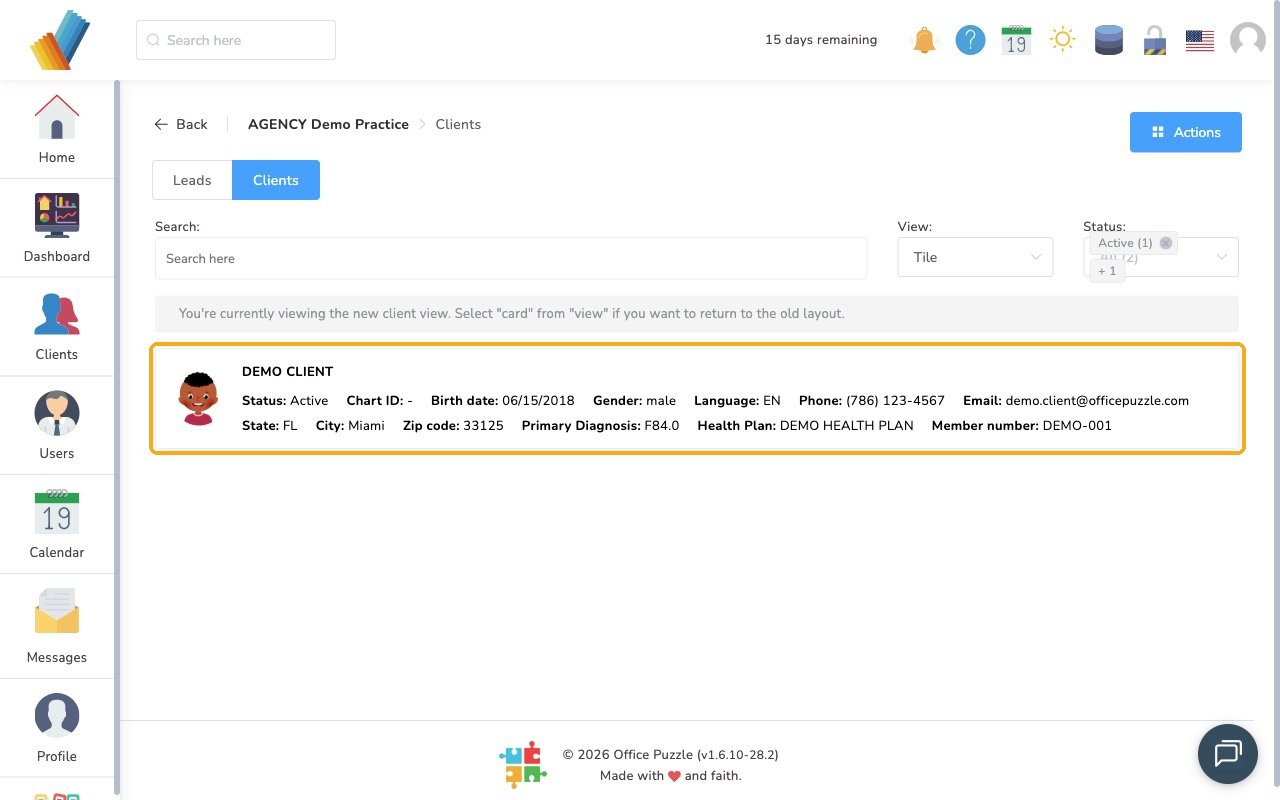
Open the client's dashboard.
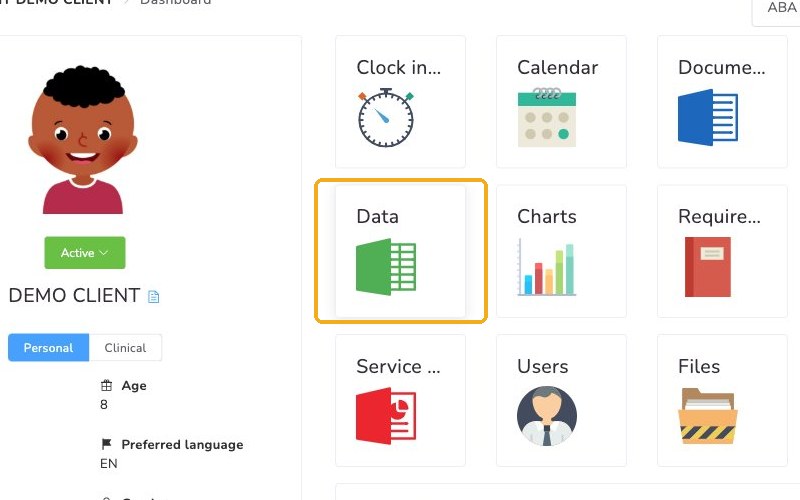
Select Data.
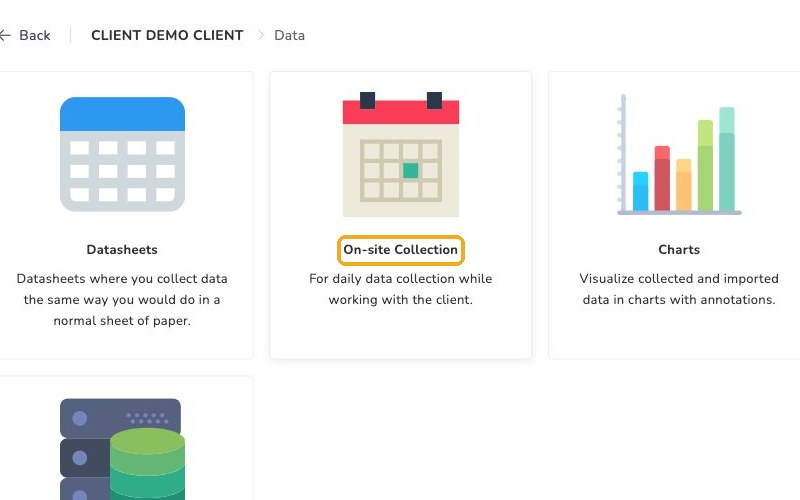
On the Data page, click On-site Collection.
Review the items from the client's service plan. Each one shows how its data is collected.
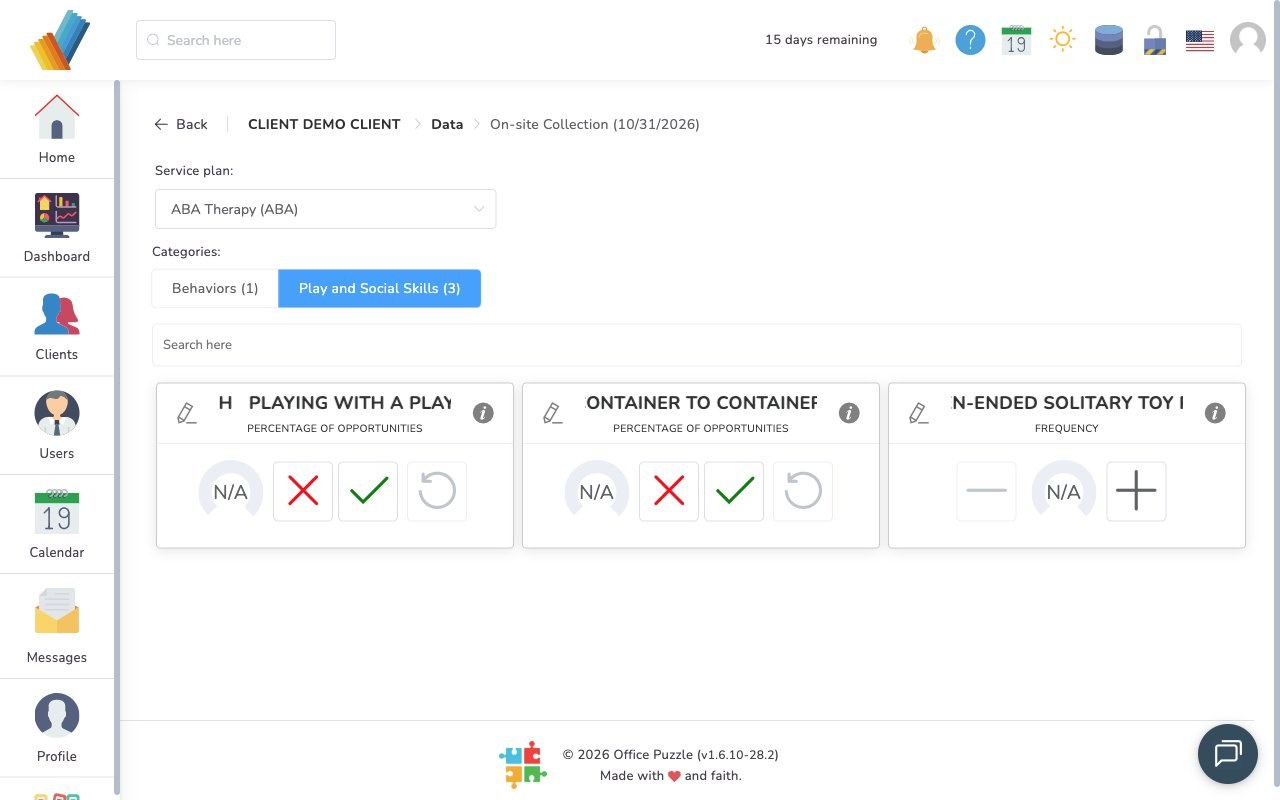
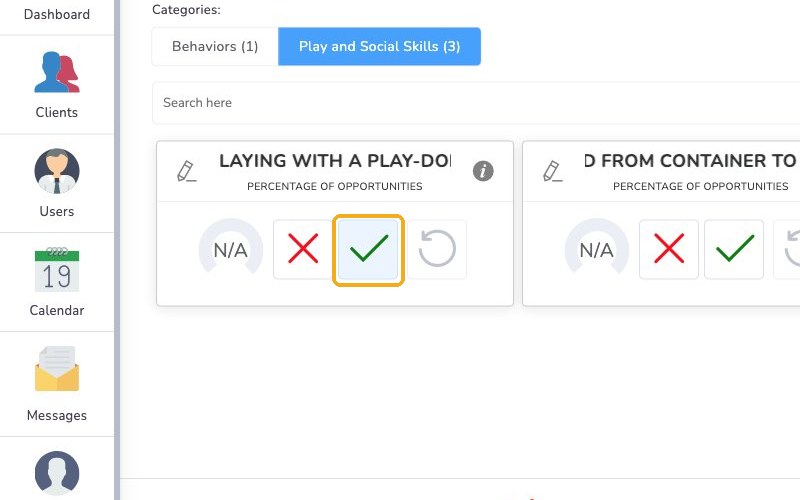
Tap the buttons for each item to record data in real time. If you tap the wrong one, you can step back.
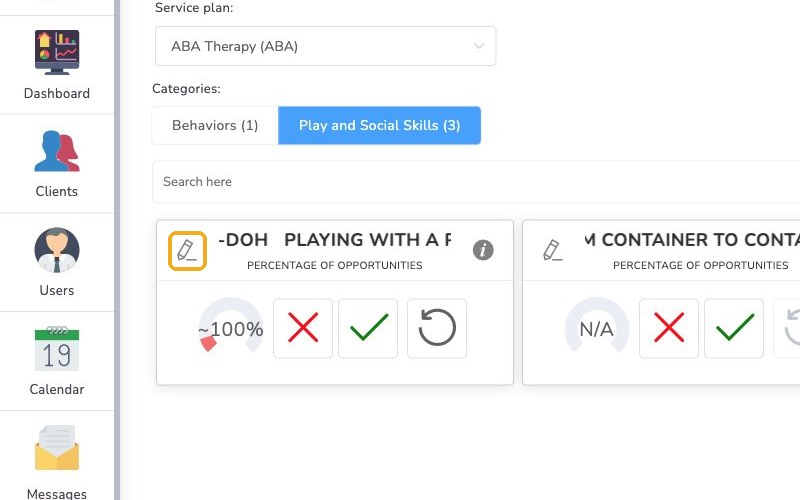
Click the pencil on an item to see the levels you're collecting data on, the data collected so far today, and the item's history.
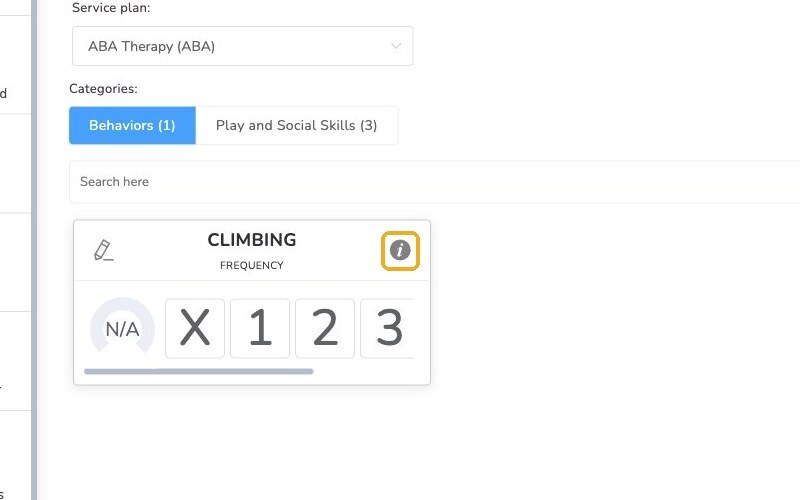
Click the i to see the service plan and a chart of previous data. It also shows the current objective the client is working toward.
Check the objective
The current objective is the most important thing the i shows.
Collect data in a datasheet
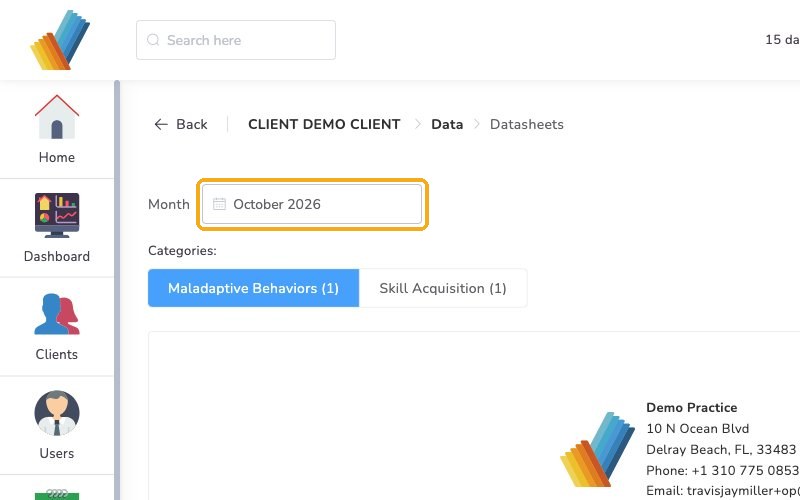
Return to the Data main page and select Datasheets.
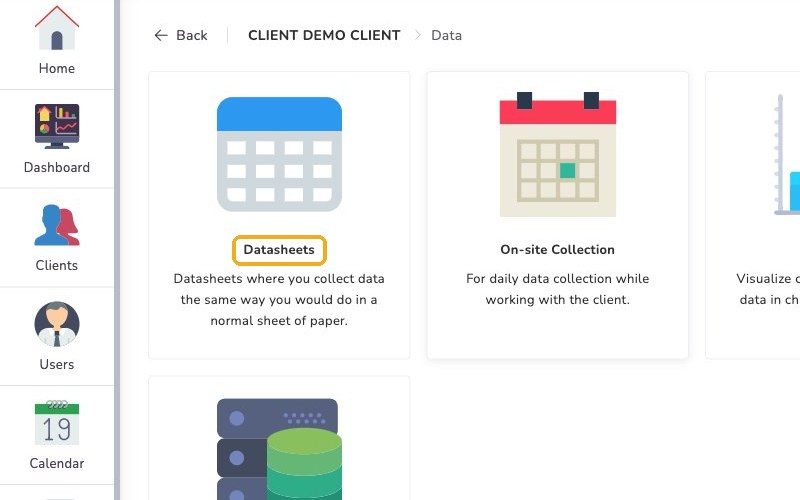
Use the datasheet to collect data. It works like a paper sheet for the whole month, and calculations happen automatically.
Collect data from the note page
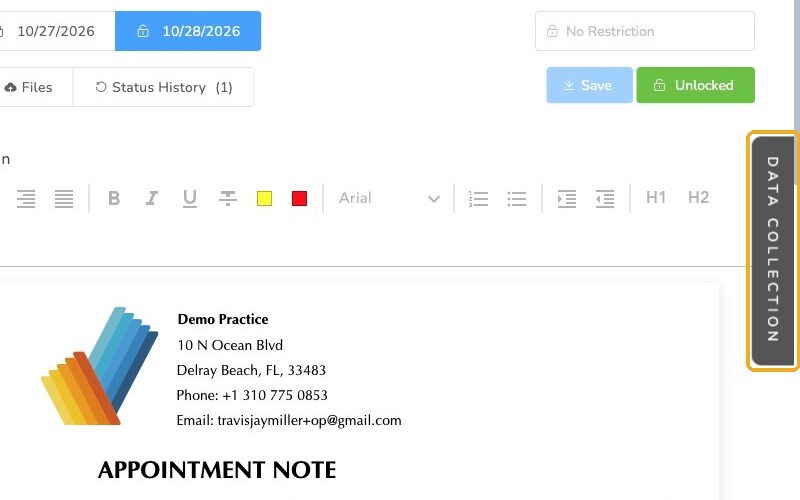
On the note page, click Data collection at the side of the screen.
Check it worked
- Data you record in any of the three places goes straight to the datasheets and charts.
Watch out for
- Tapping the wrong button. Step back to undo it while you're collecting live.