
From our datasheets, you will be able to add the data collected for your client, as you would do it from a sheet of paper for the entire month of work.
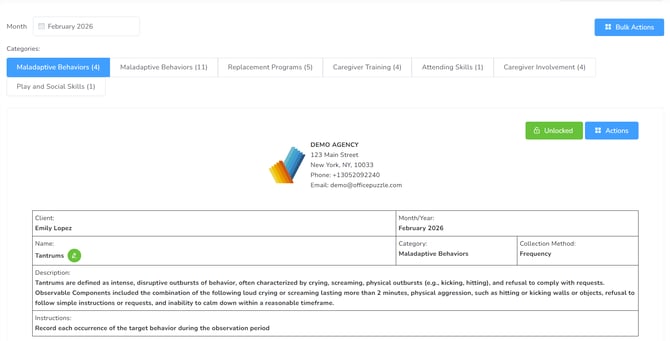
- Depending on the type of data being collected, the datasheet used will change.
- All calculations are made automatically by the system.
- For days when there is no event, they will appear greyed out.
- The initials of the person will appear automatically at the end of the day.
- You can add comments to every datasheet.
- You can add multiple signatures to the datasheets.
Dates
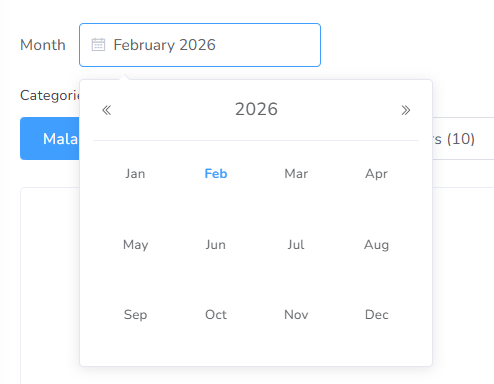
You can change the month in the top left-corner selector. Please be aware that the list of available Datasheets will also depend on the approved start/end dates for every element in the Service Plan. If an element has no defined start/end date, it will be available to collect data for every month past and future.
By default, the current month is displayed.
Categories

You can show the datasheets for a given category by clicking on the top of it. The active category will be displayed in blue. Your list of categories might be different if the Service Plan has category names.
Bulk Actions
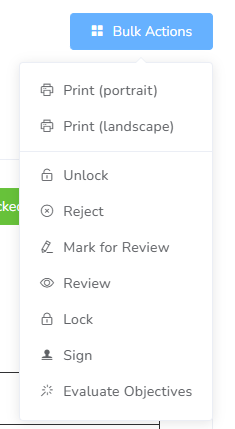
There are some repetitive actions that might need to be executed at the same time; for this, the “Bulk Actions” button is available:
- Print all the datasheets (portrait mode/landscape mode).
- Unlock all the datasheets.
- Reject all the datasheets.
- Mark for Review all the data sheets (same as Ready for Review).
- Review all the datasheets (only available for providers with Level 2 or more).
- Lock all the datasheets (only available for Administrators).
- Sign all the data sheets.
- Evaluate Objectives (whether the STO is mastered or not)
In the right corner of the datasheet itself, there are two options: Status and Actions.

- Status – As in the documents, here you can update the status of data.
- Actions – Within this button, you can find three options:
- Chart – It will show you an updated graph without having to leave the datasheet.
- Refresh – You will be able to update if you have collected new data or deleted or modified previously collected data.
- Status history – You can access the history of the status changes.
Available Statuses

- Unlocked – This is the default status for data.
- Ready for Review – This status will signal to the rest of the users that the data is ready to be Reviewed or Locked.
- Rejected – This status will signal to the users that the data needs to be corrected.
- Reviewed – This status is reserved for providers with Level 2 or superior. This will put the data as read-only, and no more changes are allowed.
- Locked – This status is reserved for administrators. This will put the data as read-only, and it does not allow making more changes.
Header
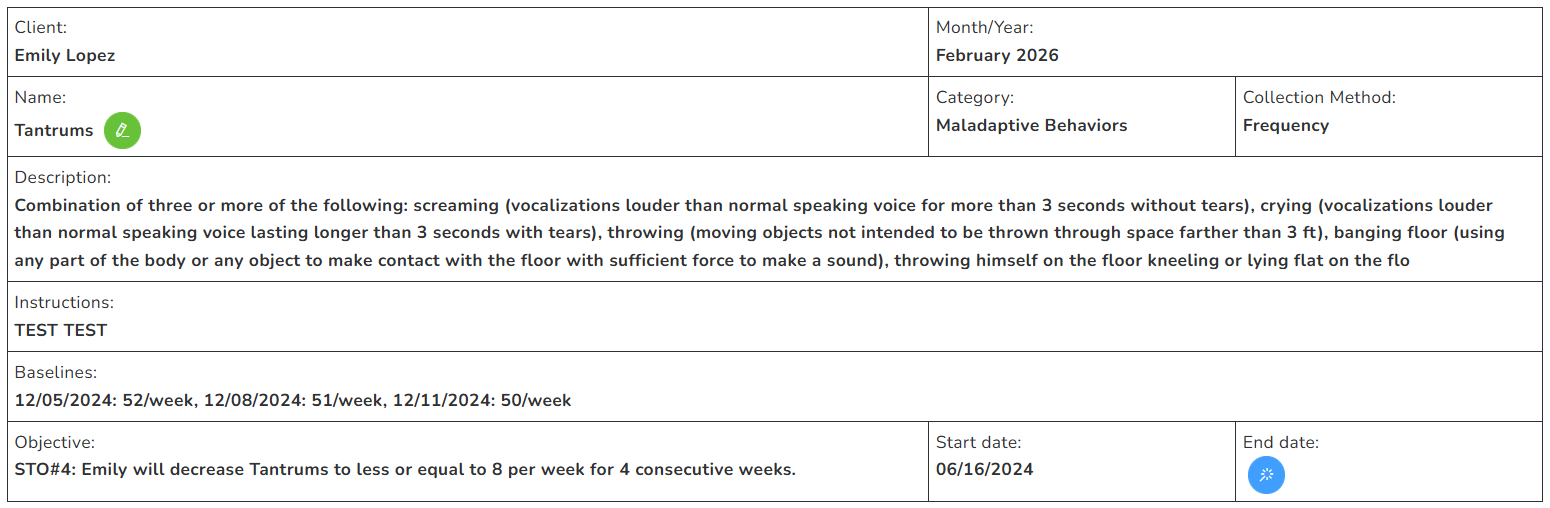
This is the common heading for most datasheets. The following information is displayed only if it was configured in the Service Plan.
- Client, the full name of the client.
- Month/Year, this datasheet month and year.
- Name of the item.
- Category: the category this datasheet belongs to.
- Collection Method: The collection method is configured.
- Description: the full description of the Service Plan element.
- Instructions: The number of specific instructions for the data collection of the item.
- Baselines: the list of baselines added to the item with dates and values.
- Objective: The current objective for this datasheet, including name, start, and end dates (it will show a date if mastered).
Footer
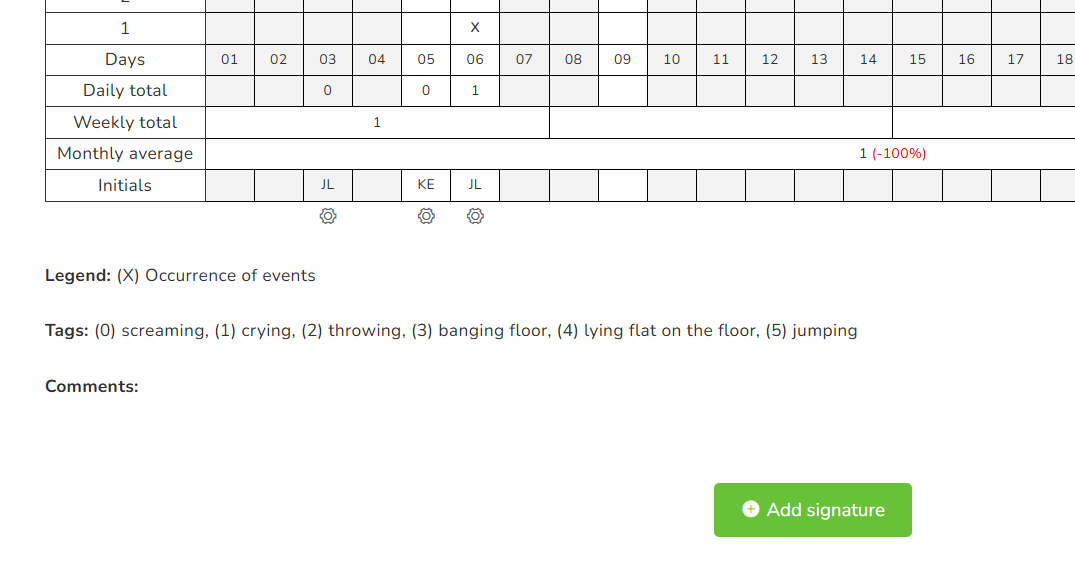
This is the common footer for most datasheets.
- Initials – It will show the initials of the person who collect the data. The initials can be modified, but will keep a record of the first person that collected the data. Below the Initials, there is a gearwheel, which will allow you to display a series of options related to the data: Ignore, Mark as Baseline, Change initials, Info and Delete.
- Legend – This the explanation for each level of data collected.
- Comments – Here you can add some comments about the item and collection.
- Signatures – There can sign the RBT and the analysts.