
1. Travel Reimbursement
2. When the Travel option is enabled in the Appointment event configuration, you will find the add travel details option at the bottom of the event.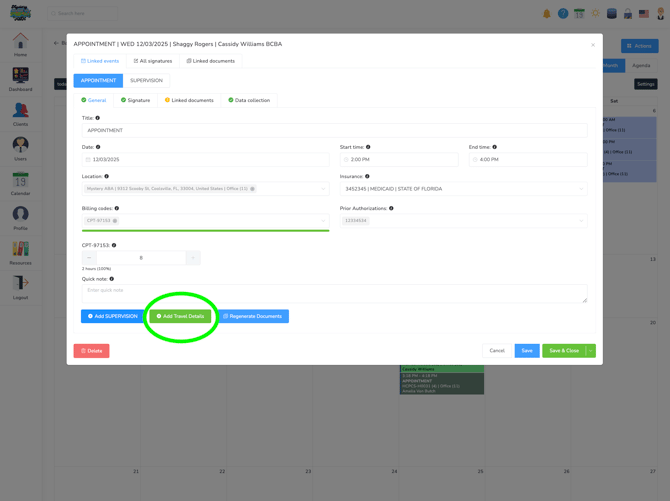
3. You'll select your traveling mode.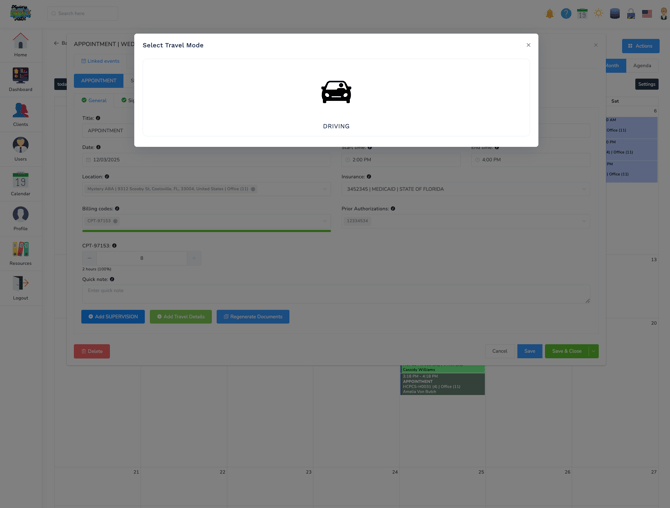
4. You can indicate if you are arriving from another event or from a different location.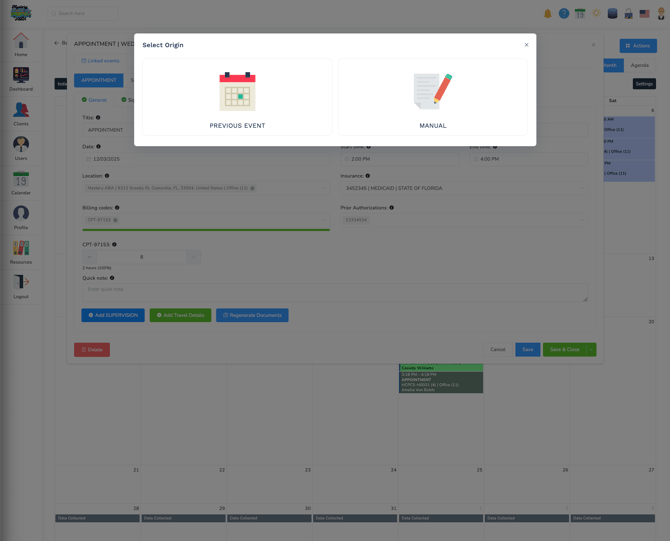
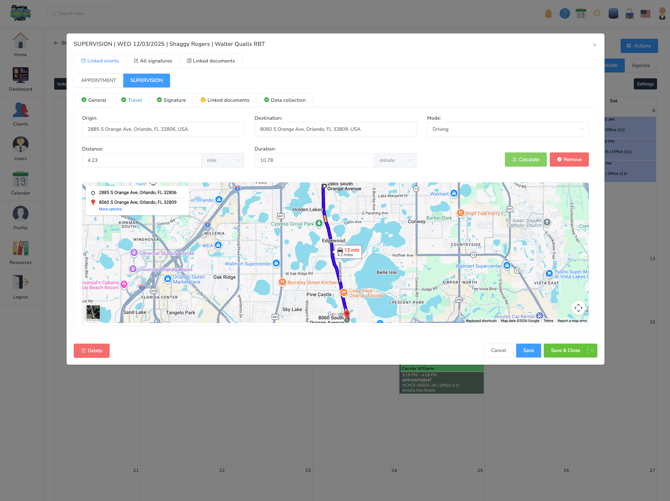
5. After the origin address is chosen, you can calculate the distance and durations.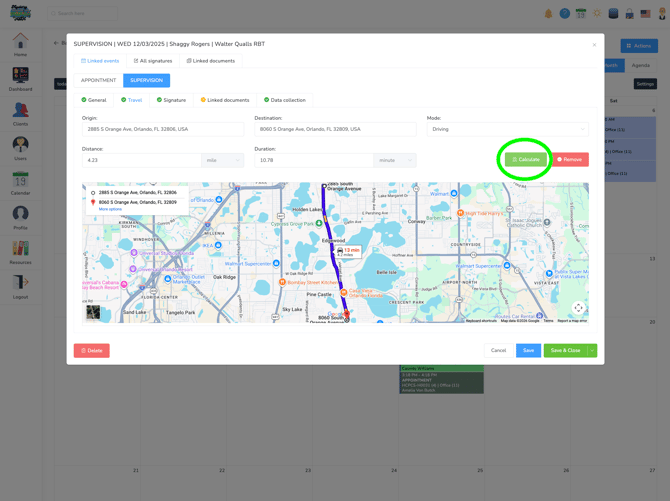
6. The system will determine the distance and duration of your trip and save it to the event.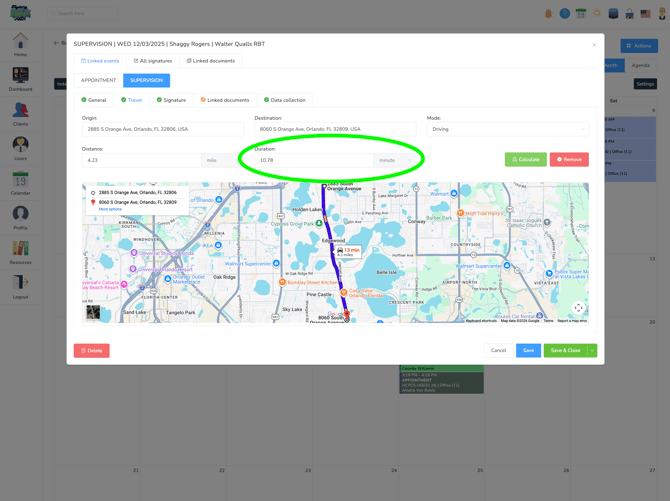
7. To enable travel for events, head to Configuration to set up your travel tracking preferences.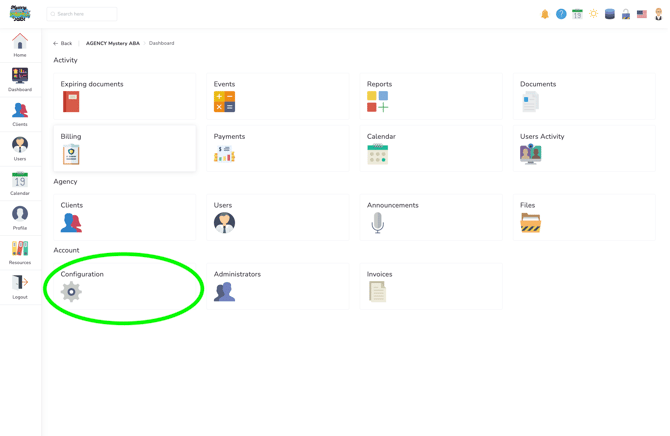
8. Now, open the Events section to configure appointment types.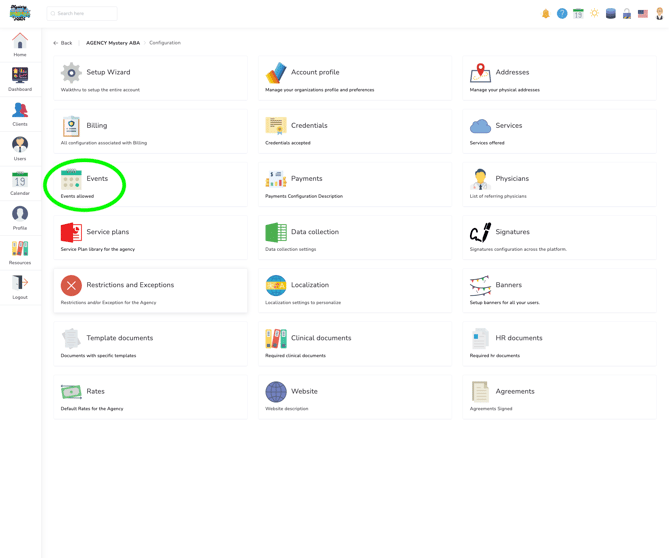
9. Select the event you want to enable travel tracking for.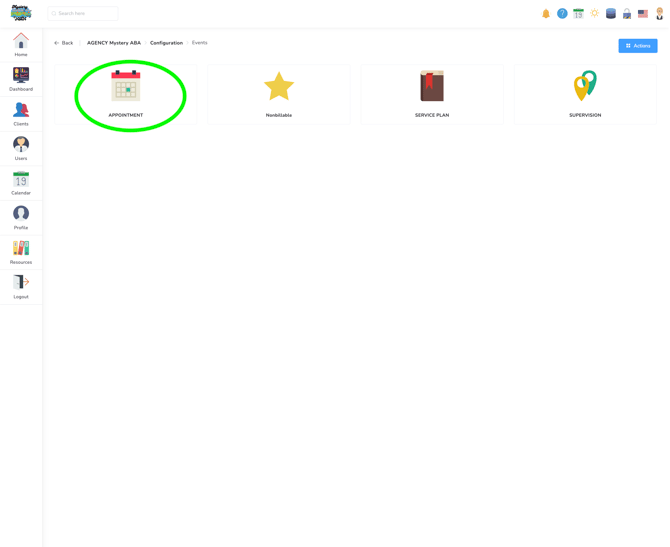
10. Jump into Configuration again to adjust rate settings.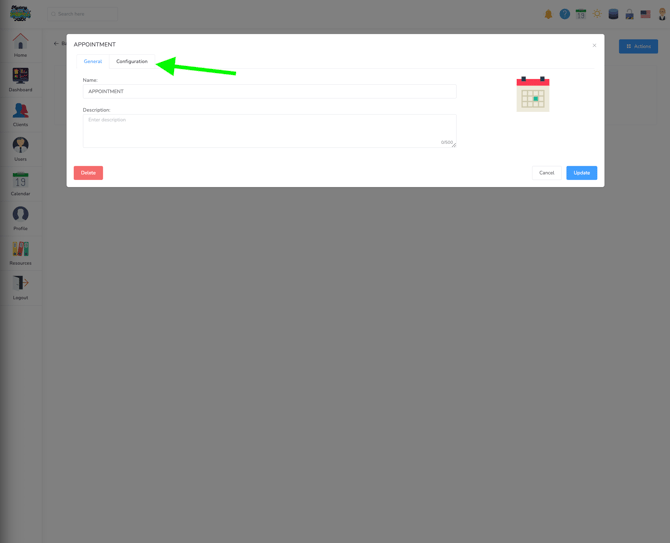
11. Select the option to allow it.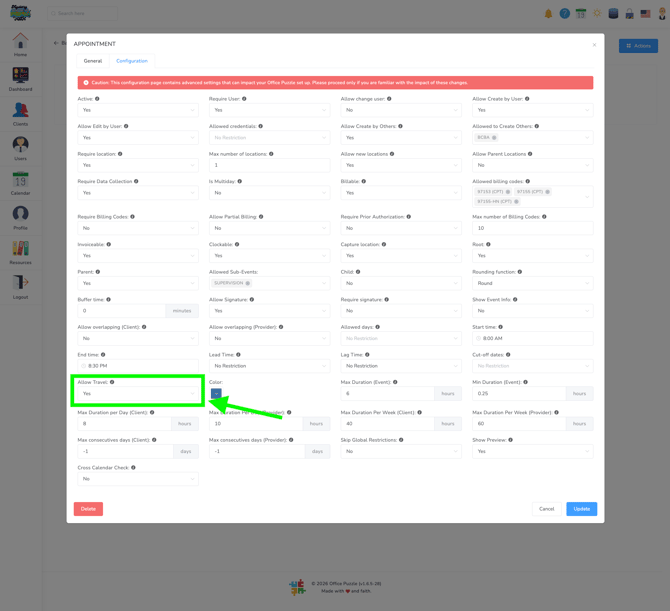
12. To define the reimbursement rate, go back to the configuration page and select rates.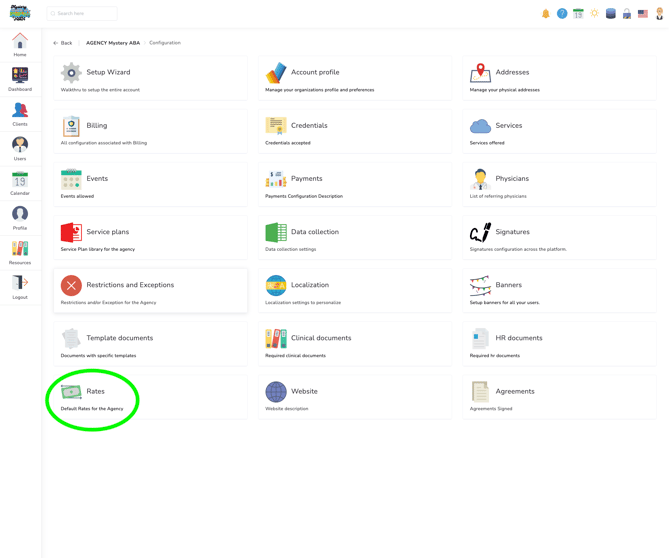
13. Create a new rate to track travel compensation accurately. You can either choose to reimburse using time or distance.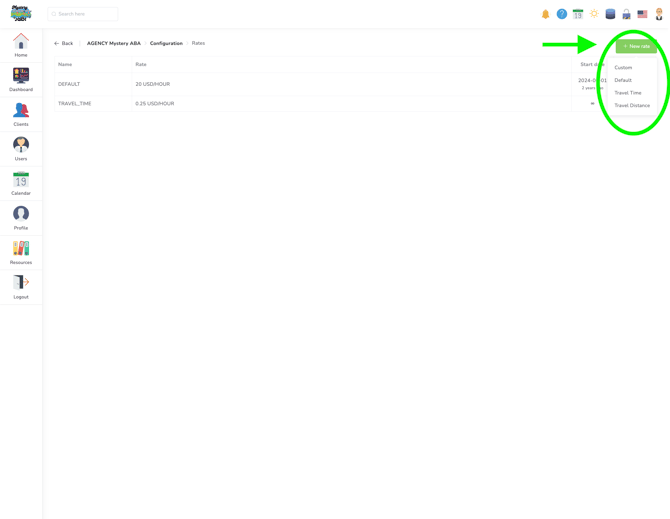
14. Set the amount and frequency for reimbursement, such as $1.00 per minute traveled.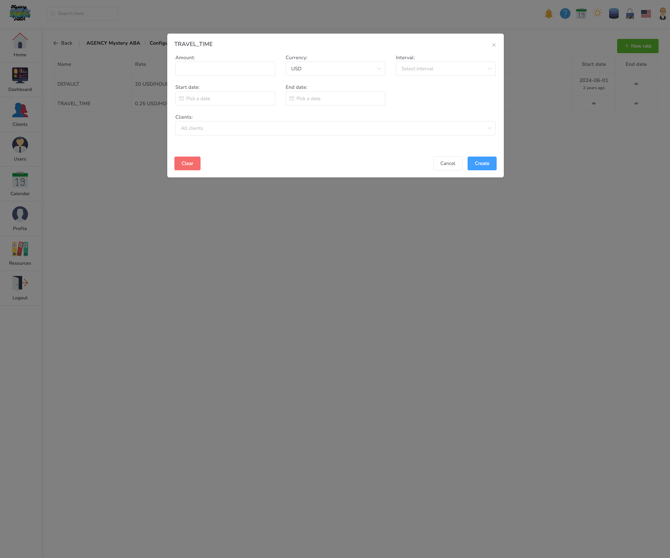
15. Well done!
You have now successfully enabled travel tracking and configured travel reimbursement settings in Office Puzzle. Your team can begin recording travel time and mileage within events, and reimbursement amounts will calculate based on the settings you have configured for your agency.