

Exporting client data from Behaviorsoft to Office Puzzle
Exporting from Behaviorsoft
Step 1: On the Client’s screen, click the Maladaptives tab or the Replacements/Skills tab.
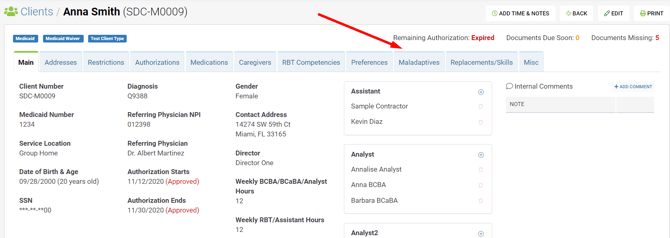 Step 2: Select the specific maladaptive behavior or replacement, and then click on the EXPORT DATA button under the GRAPHS column.
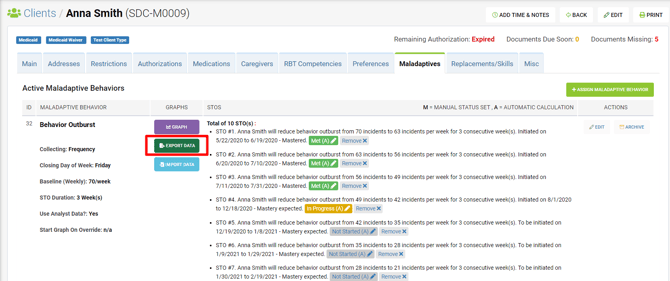
Step 3: The EXPORT DATA pop-up screen will then appear.
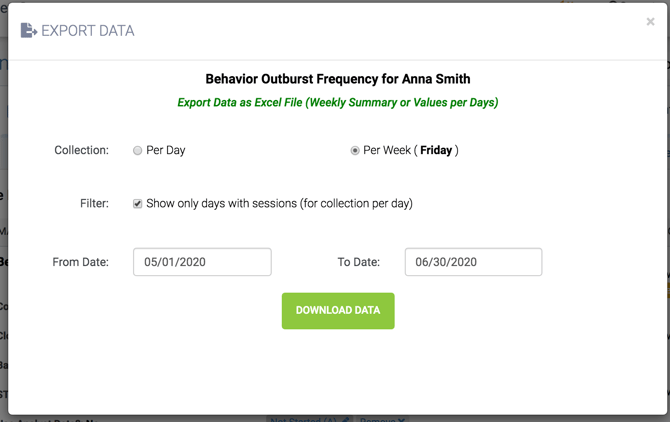
Step 4: Lastly, you can specifically choose to export data on specific dates. There is an option to enter a From Date and a To Date.
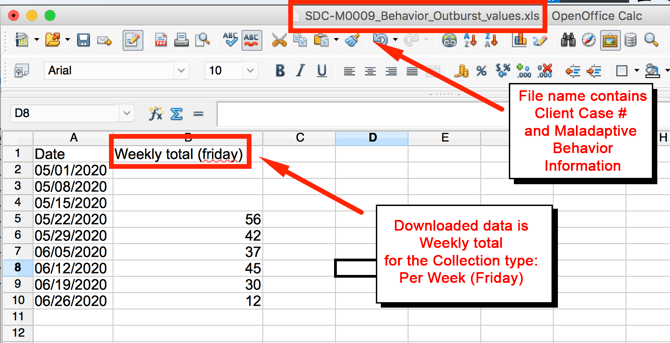
Step 5: Once you have selected the Collection type and choose the specific dates, click Download Data. The data will then be exported in an Excel file.
Importing to Office Puzzle
Step 6: Go to Client’s Dashboard.

Step 7: Click on the Service Plan button.
Step 8: Click on ABA Therapy Service Plan.
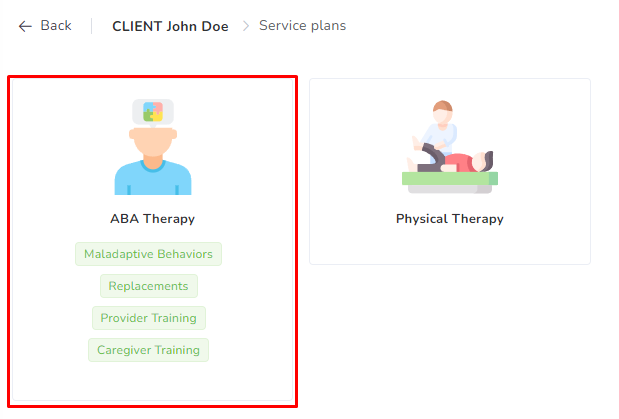
Step 9: Choose the required Category tab: Maladaptive Behaviors, Replacements, etc.

Step 10: Click on the Edit button on the right side of the item.

Step 11: Click on Imported Data tab.
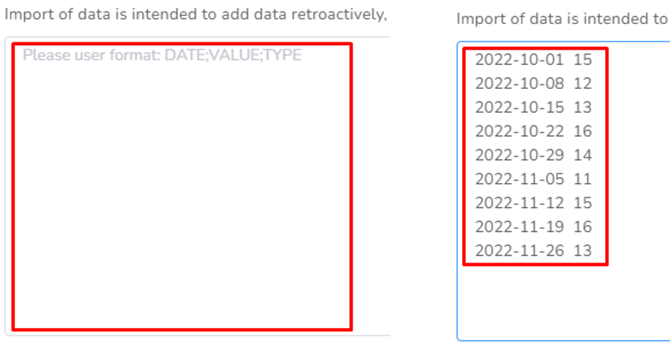
Step 12: On the main box, you can paste the dates and values from the Excel file that you’ve exported from Behaviorsoft.
Step 13: Click on Update.