
Step 1: Log in to the Availity Portal
- Sign in to the Availity portal.
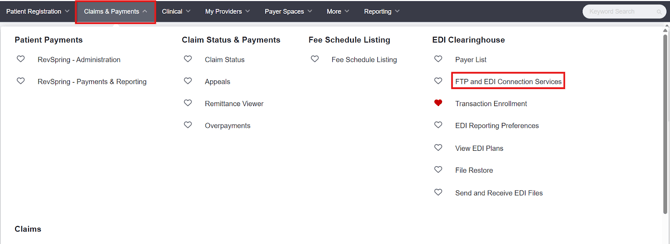
- Navigate to Claims & Payments.
- Select FTP – EDI Connection Services.
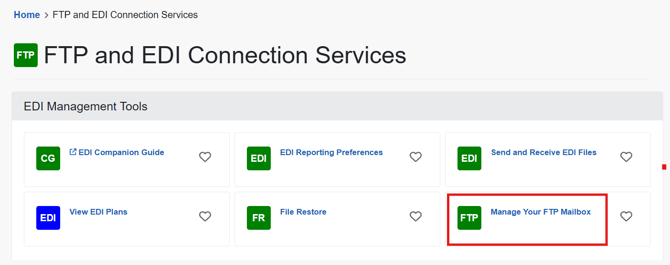
Step 2: Access the FTP Mailbox Settings
Click Manage Your FTP Mailbox.
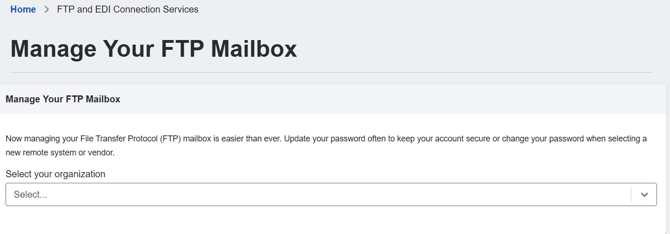
Step 3: Select the Organization
Choose the organization for which you want to create the FTP connection.
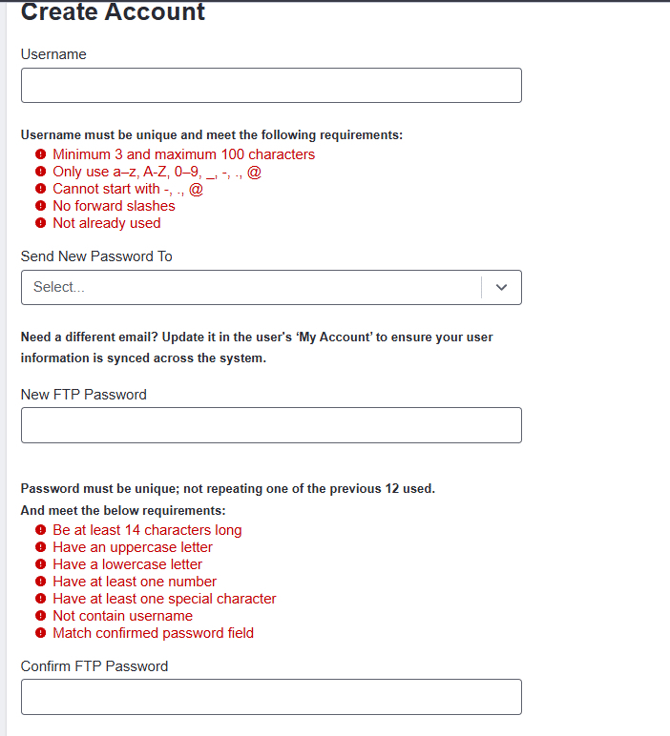
Step 4: Create FTP Credentials
Create the FTP credentials (username and password) for the mailbox.
Important: These credentials will be required when configuring the SFTP connection in Office Puzzle. They should be different from the credentials used to log in to the Availity portal.
Step 5: Save the Configuration
Once completed, you should receive a confirmation message indicating that your FTP mailbox has been successfully created.
You can now use these credentials to complete the SFTP configuration in Office Puzzle.
Here’s the link for other clearinghouses FTP configuration:
Office Ally: https://support.officeally.com/technical-issues/activating-sftp-with-office-ally
Claim MD: https://docs.claim.md/docs/sftp
Availity (Made by Availity): https://essentials.availity.com/availity/documents/EDI_ConnectionServices_QuickStartGuide.pdf