
Step 1: Navigate to the ERA Section
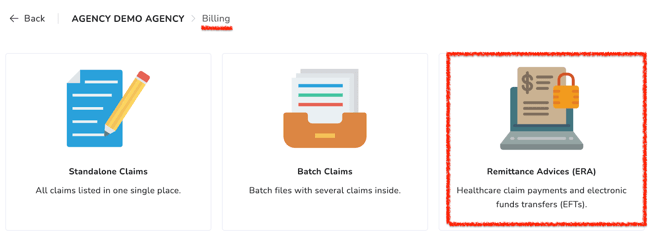
- Go to Billing
- Select Remittance Advices (ERA)
 Step 2: Upload the 835 File
To upload the ERA file:
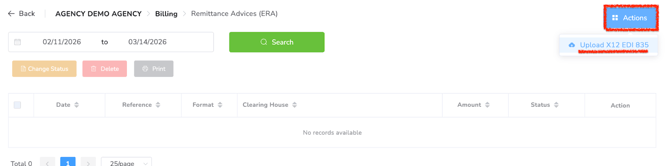
- Click Actions
- Select Upload X12 EDI 835 Files
- Upload the ERA 835 file to Office Puzzle.
Note: This step may not be necessary if you have an SFTP connection configured with your clearinghouse and the Retrieve ERA option is enabled. In that case, ERA files will be automatically imported into Office Puzzle.
Step 3: Process the ERA File
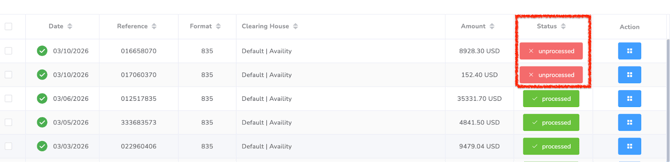
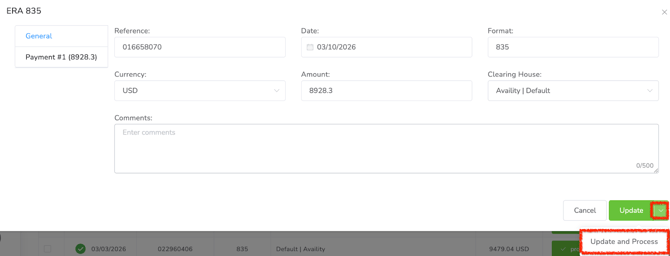
Once the 835 file has been uploaded to OP, it must be processed. You can identify whether the file has been processed by reviewing its status in the ERA list. If the file has not yet been processed, proceed with processing it.

Step 4: Finalize Claim Processing
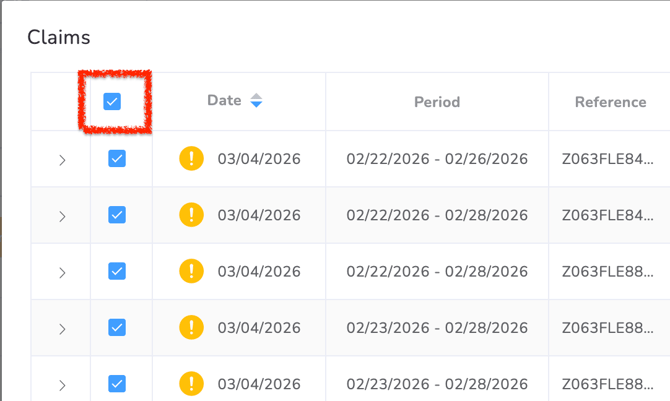
After the system processes the ERA file, it will display all claims included in the remittance advice.
- Select all the claims listed.
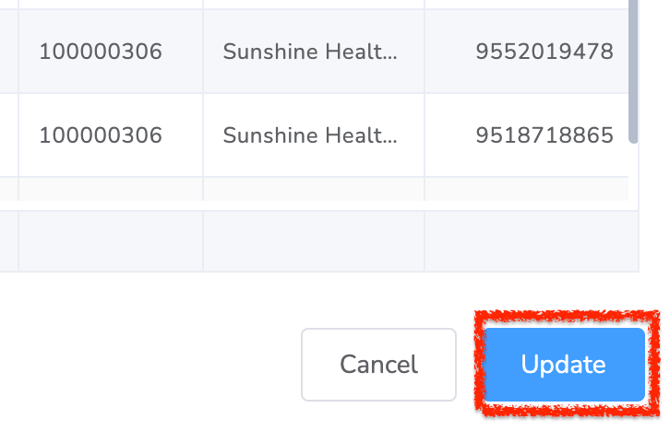
- Confirm the action to finalize the processing.
Important: This process will only update the status of claims that were originally created in Office Puzzle. The status of the batch associated with those claims will not be updated automatically.