
Batch claims
Summary:
Step 1- From the Agency Dashboard, access Billing.
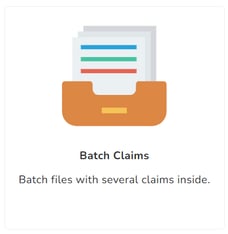
Step 2- Click on Batch Claims.
Step 3- Click on +New Batch.
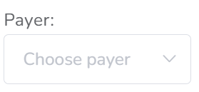
Step 4- Select Payer.
Step 5- Select Health Plan.
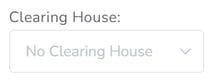
Step 6- Select Clearing House (if needed/required).
Step 7- Click on Create.
Step 8—Within the batch, click on + Add claim.
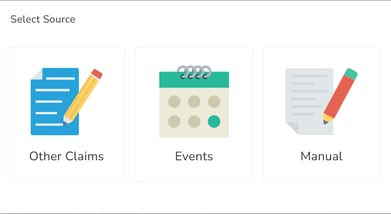
Step 9- Select Other Claims / Events / Manual.
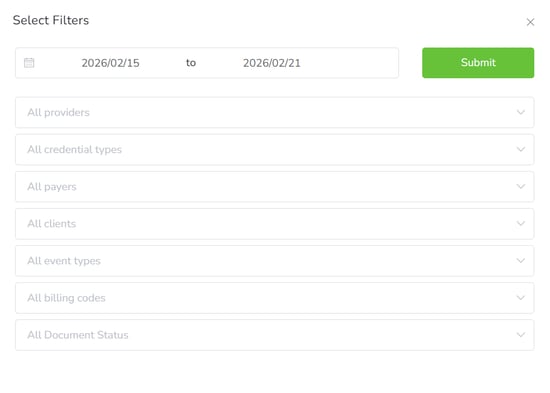
Step 10- If selected Events, then choose the Range of dates and click on Submit. Also, there are optional filters: Providers, Credential types, Payers, Clients, Event types, Billing codes and Document status.
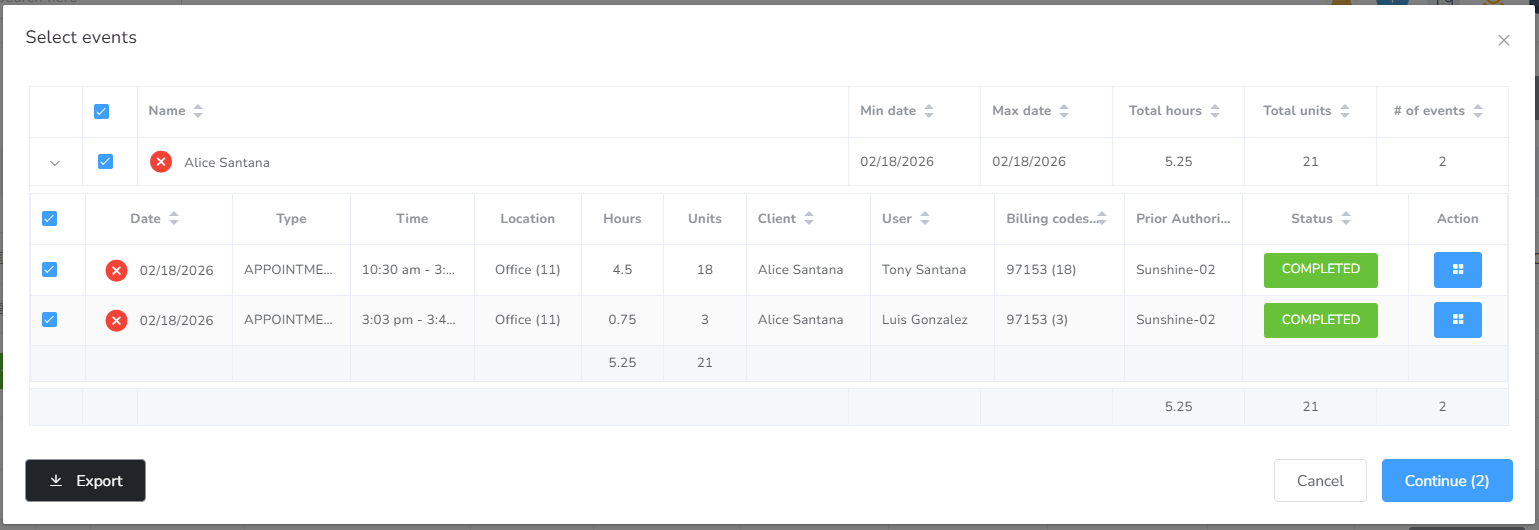
Step 11- Select the events to be included and hit Continue. (There you can check if there are any errors in the events.)
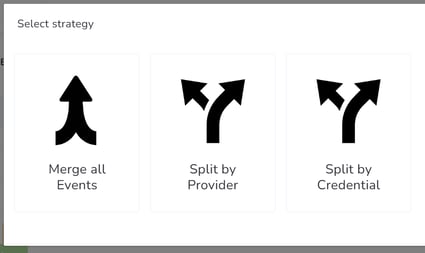
Step 12- Select Strategy: Merge all events, Split by Provider or Split by credential.
Step 13- Select the Claims to be added.
Step 14- Click on Add.
Create Batch claims
Step 1- From the Agency Dashboard, access Billing.
Step 2- Click on Batch Claims.
Step 3- Click on +New Batch.

Step 4- Select Payer.
Step 5- Select Health Plan.

Step 6- Select Clearing House (if needed/required).
Step 7- Click on Create.

Step 8- Within the batch, click on + Add claim.
Step 9- Select Other Claims / Events / Manual.
Step 10- If selected Events, then choose the Range of dates and click on Submit. Also, there are optional filters: Providers, Credential types, Payers, Clients, Event types, Billing codes and Document status.
Step 11- Select the events to be included and hit Continue. (There you can check if there are any error on the events)
Step 12- Select Strategy: Merge all events, Split by Provider or Split by credential.
Step 13- Select the Claims to be added.
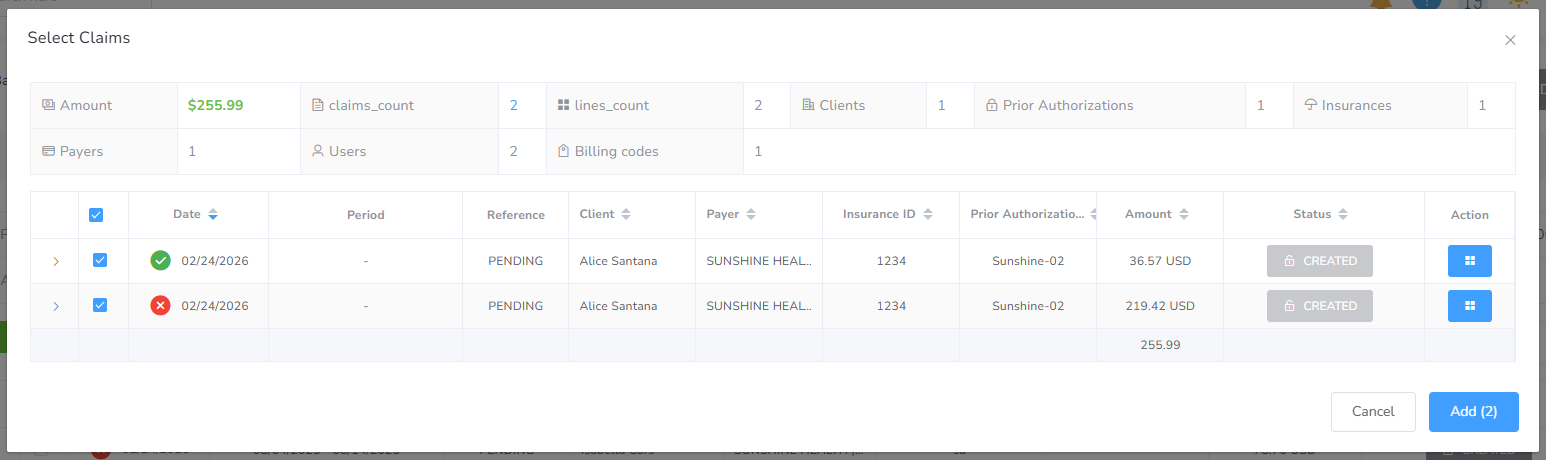
Step 14- Click on Add.