
What you'll do
Build the list of HR documents each staff member needs on file. Every staff member you add gets the same checklist automatically, and Office Puzzle tracks expiration dates and reminds people before anything runs out.
Before you start
- Do this before you add your staff.
Video walkthrough
Step by step
Add your documents
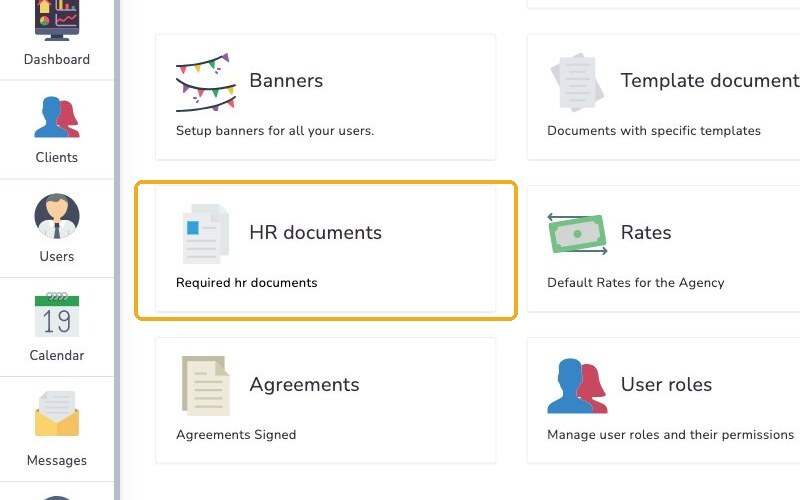
From your Home page, under Accesses, click your agency's name to open your Agency Dashboard. Click Configuration, scroll to the bottom and click HR documents.
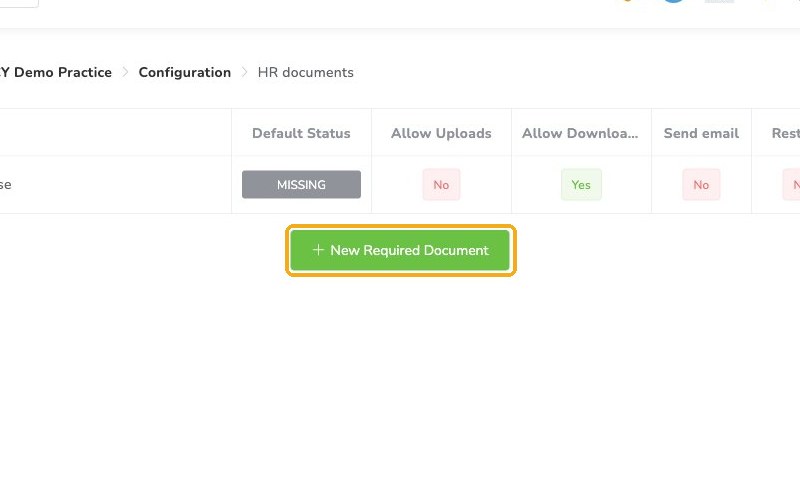
Click New Required Document. You can choose Templates, Office Puzzle presets, or Manual.
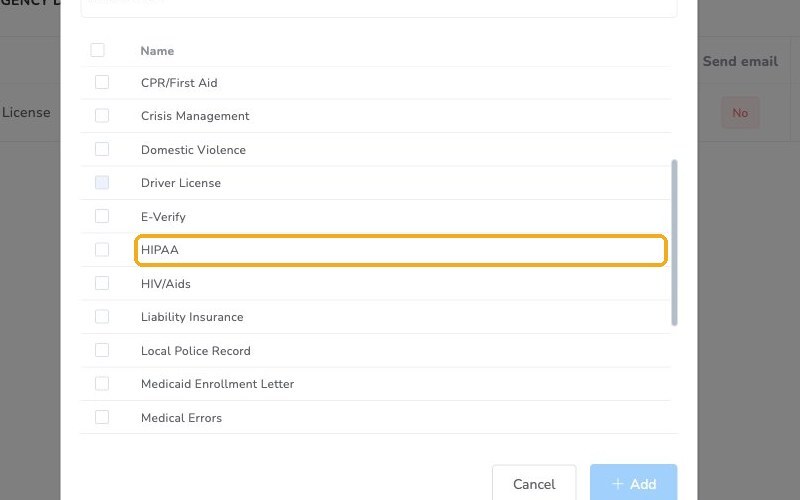
From the Office Puzzle presets, check the documents you need (one, several or all of them), then click Add.
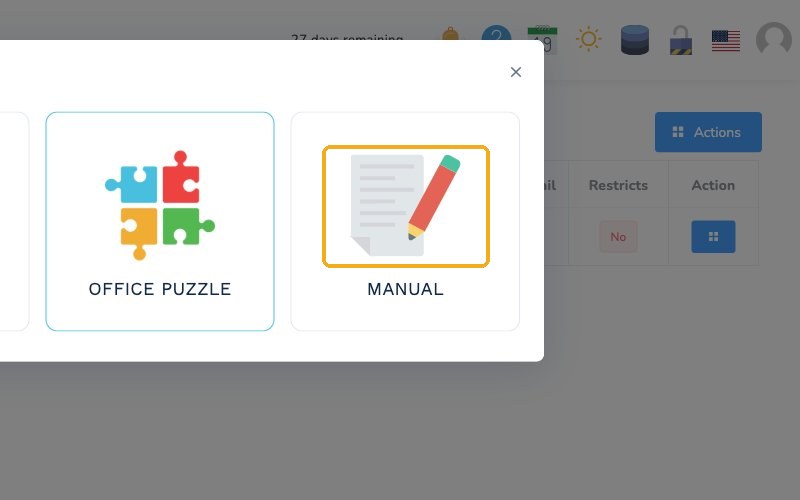
For a document that isn't in the presets, choose Manual, fill in the form and click Create.
Set up each document
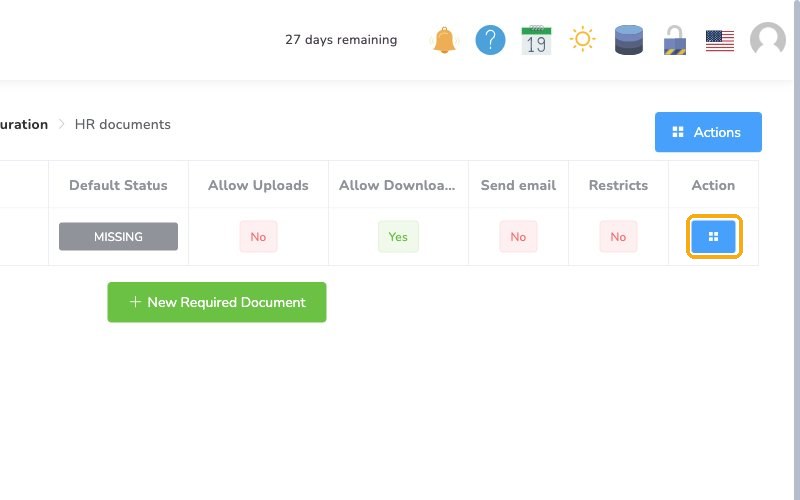
To adjust a document, click the Actions button and then select Edit.
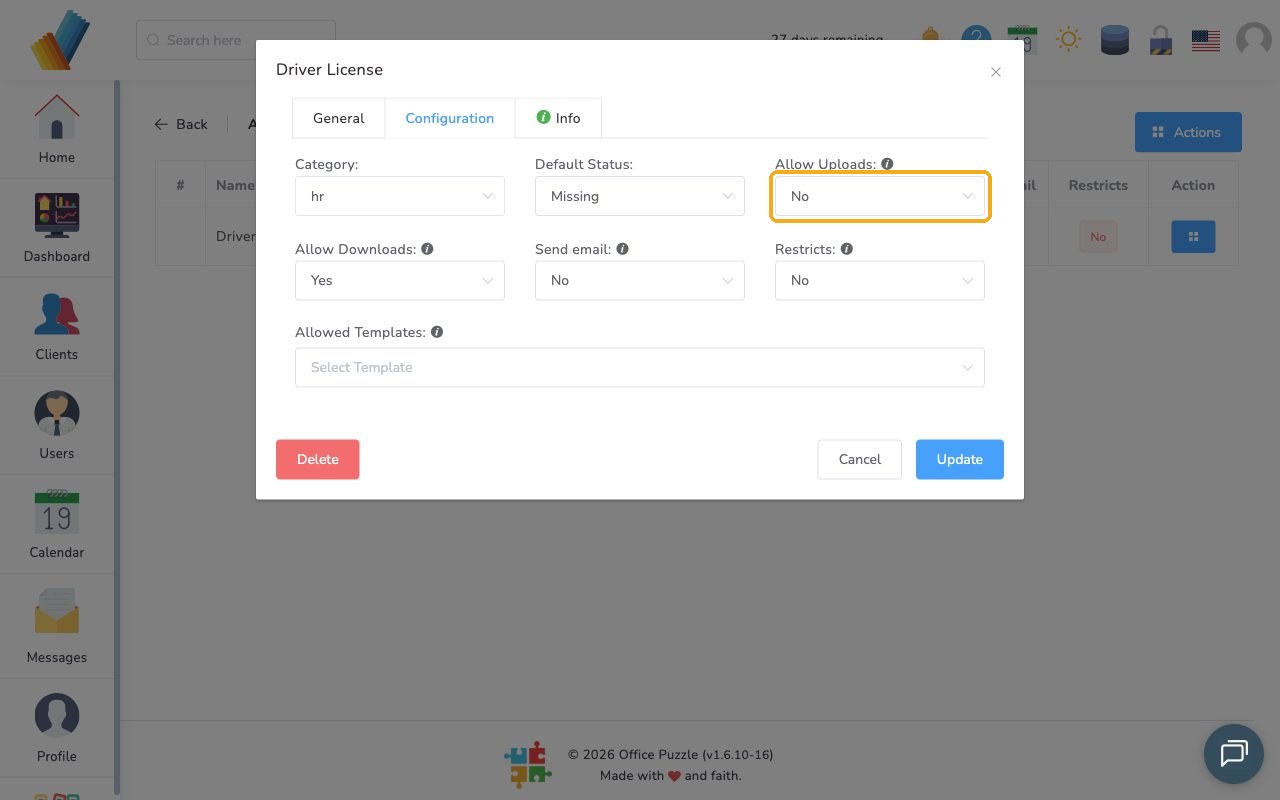
Select the Configuration tab and set the Default Status: Missing, Delivered or Ignored.
Allow Uploads and Allow Downloads let staff upload or download their own documents. When they're off, only admins can.
Turn on Send email to notify staff when this type of document is about to expire.
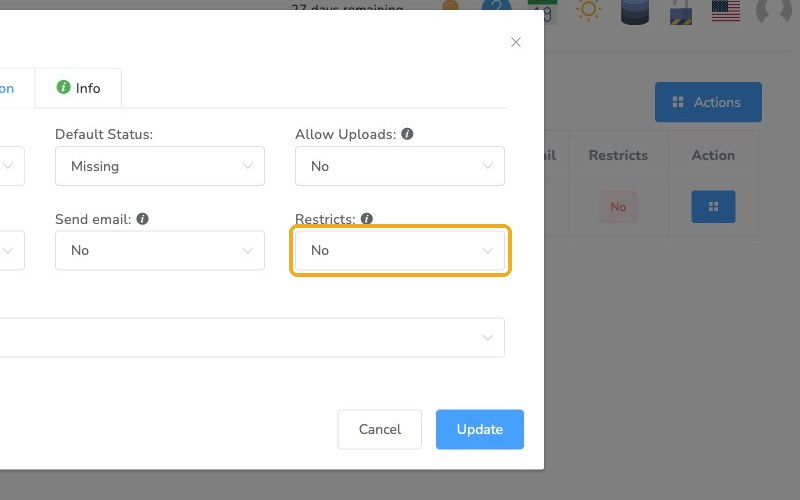
Restricts stops a staff member from working in the system if a required document is missing or expired. Lead time sets how far ahead of expiration the restriction starts.
Leave Restricts off for now
If you turn it on before your team has uploaded their documents, everyone you add will be blocked. Come back and turn it on once their documents are in.
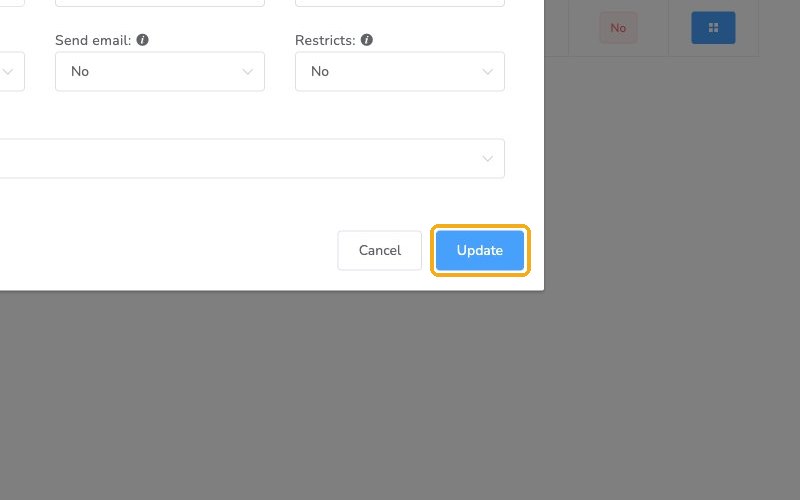
Click Update to save.
Check it worked
- Your documents are listed under HR documents.
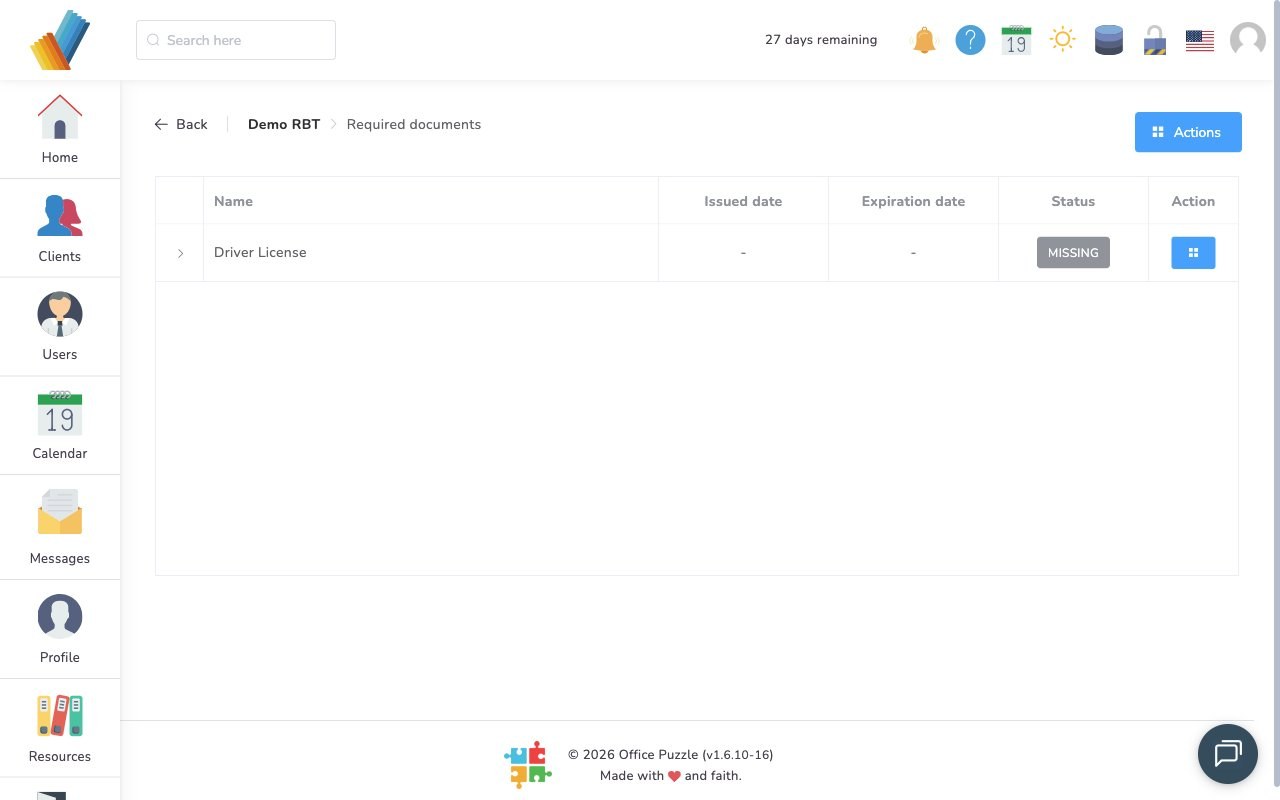
- When you add a staff member, their required documents checklist is waiting for them.
Watch out for
- Restricts turned on too early. It blocks every staff member whose documents aren't uploaded yet.
- Uploads off. If Allow Uploads is off, only admins can add a staff member's documents.