
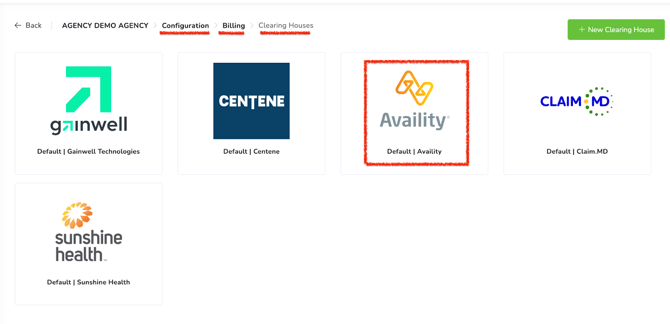
Step 1: Navigate to Clearinghouse Settings
- Go to Configuration
- Select Billing
- Click Clearinghouse
- Choose the clearinghouse you want to configure.
For this example, we will select Availity.
Step 2: Select the Exchange Method
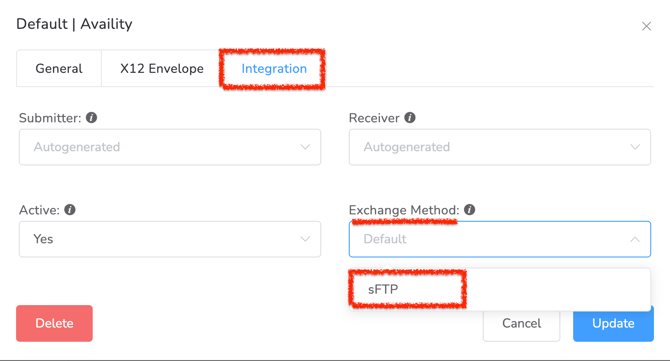
- Open the Integration tab.
- In the Exchange Method field, select SFTP.
Step 3: Enter SFTP Credentials
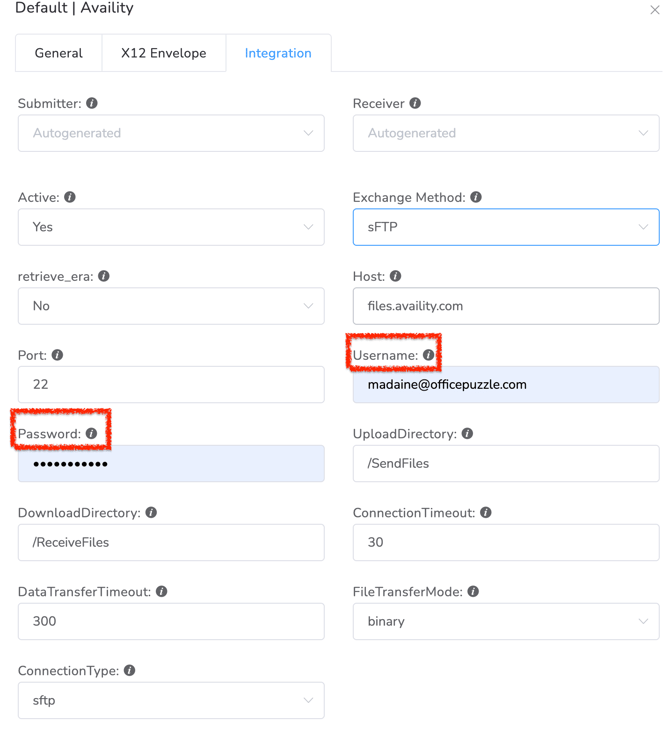
Enter the Username and Password for the SFTP connection.
Important: These credentials must be created in the clearinghouse portal specifically for the SFTP connection. The SFTP username and password are different from the credentials used to log in to the clearinghouse portal.
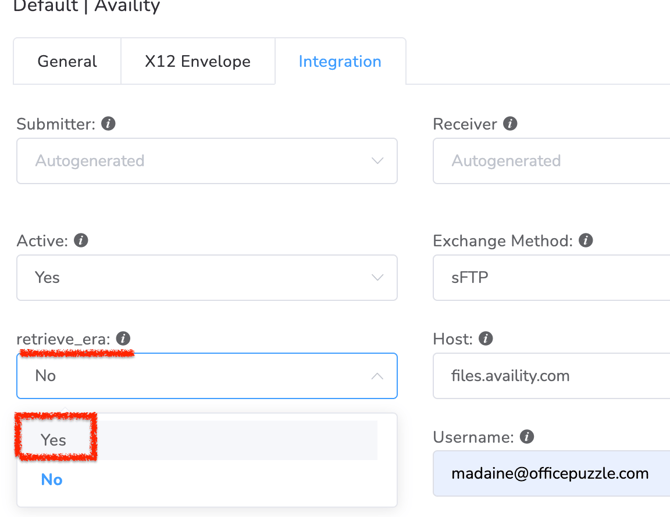
Step 4: Enable ERA Retrieval (Optional)
If you want Office Puzzle to automatically retrieve and process ERA 835 files, enable the Retrieve ERA option.
When this option is enabled:
- ERA files received by the clearinghouse will be automatically imported into Office Puzzle.
Important: To ensure this works correctly, you must verify that your payers are sending ERA files to the clearinghouse. ERA 835 files can sometimes be delivered to multiple portals, depending on the payer configuration.
Step 5: Save the Configuration
Once the fields have been completed:
- Click Update Configuration
- Save the changes
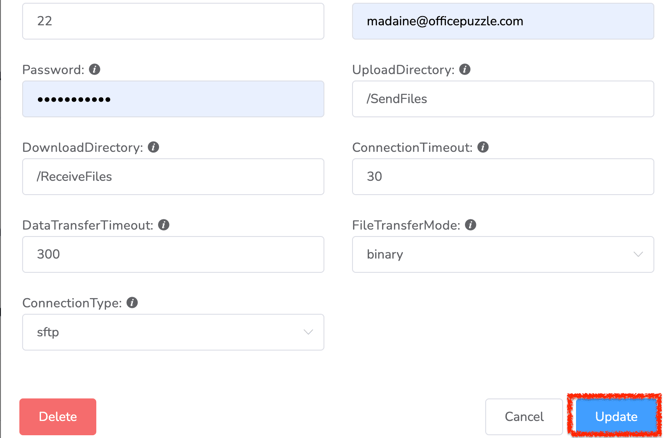
Your SFTP connection will now be configured
Click the links below for further information on how to process an ERA 835 file and configure an SFTP connection within Availity:
🌐How to Process an ERA 835 File